
Saving EMail Message Setting
After you have defined the content of an email message, you can save the format as an XML file to be used for future email messages.
- Follow the procedure for Defining Content of Feedback EMail Messages from COM Representative Screen.
- Select the customer record in the COM Representative screen.
-
On the screen toolbar, click the Send Email
button:

- Select the Email? checkbox.
-
In the Email Settings frame, click
Setting.
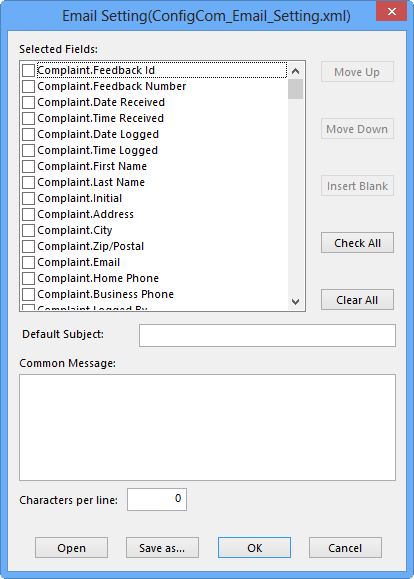
- Select the fields you want to display and clear the checkboxes of the fields you do not want to display.
-
Perform any of the following steps:
-
To move a field up or down in the list, highlight the field and click Move Up or Move Down.
- In the Default Subject field, type a subject that briefly describes the contents of the email message.
-
To include data elements in the subject bracket, the field name in the following format:
@ (FieldName)@ (For example, You have received new Feedback #@ (FeedbackID)@.)
-
In the Common Message field, type a message that appears in the email message preceding the feedback details.
-
- To use the same settings for other email messages, save them as an ini file.
- Click OK.
-
Click Save as.
The Setting File dialog box appears.
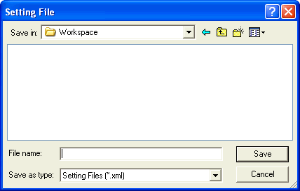
- Choose the folder where you want to place the file.
- In the File Name field, type a name for the file.
- Ensure that Setting Files (*XML) appears in the Save as type field.
- Click Save.