
Arriving and Performing Flex Stop Events
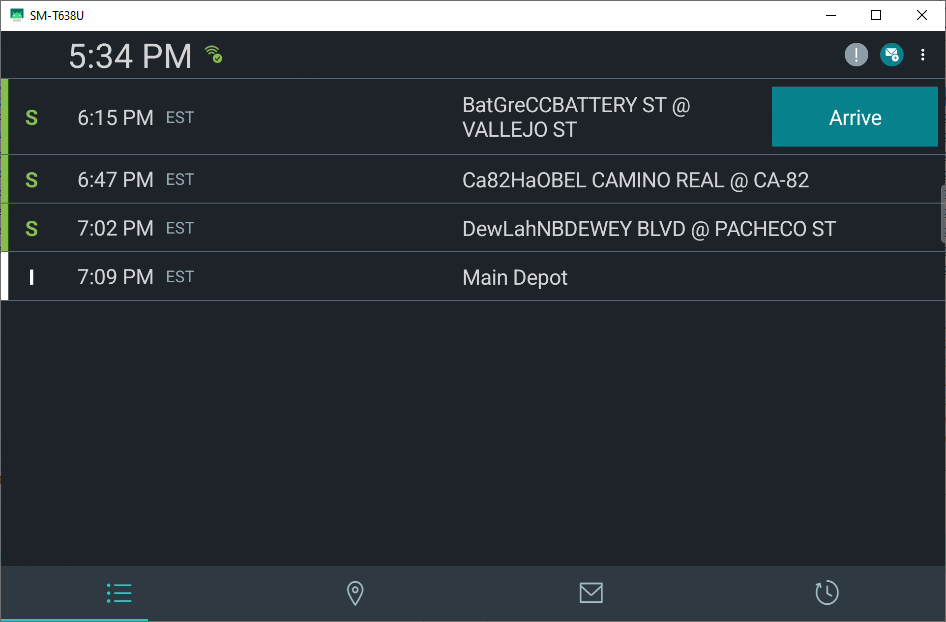
Arriving a flex event is simply clicking on the Arrive button in the Manifest.
Before you begin
JSON Settings file before the feature can be used.Procedure
-
On the Flex event, tap Arrive or tap the .
Tip:Tap the Flex event record to open the Stop/Node Details screen.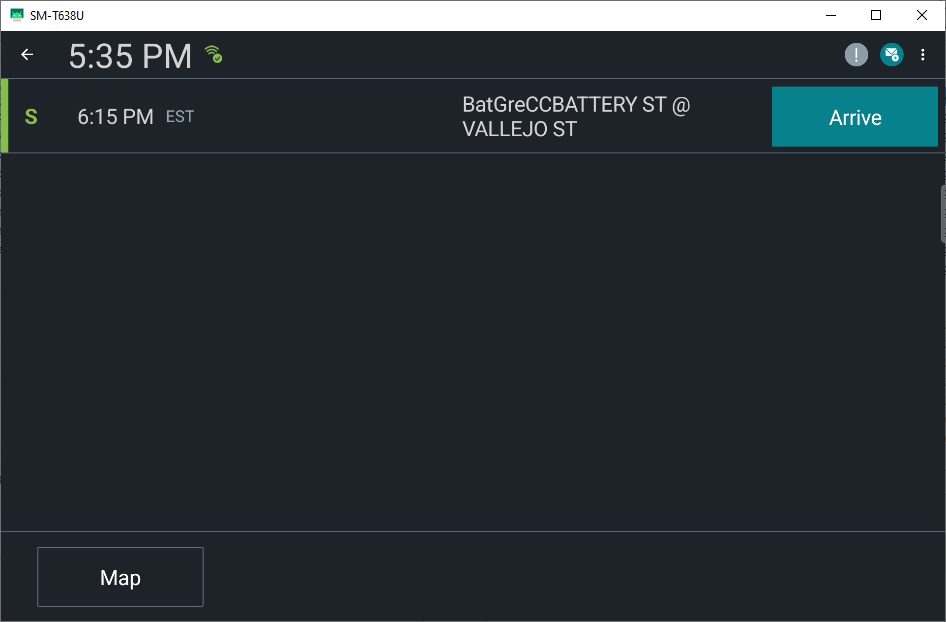 The Flex Stop Summary screen opens.
-
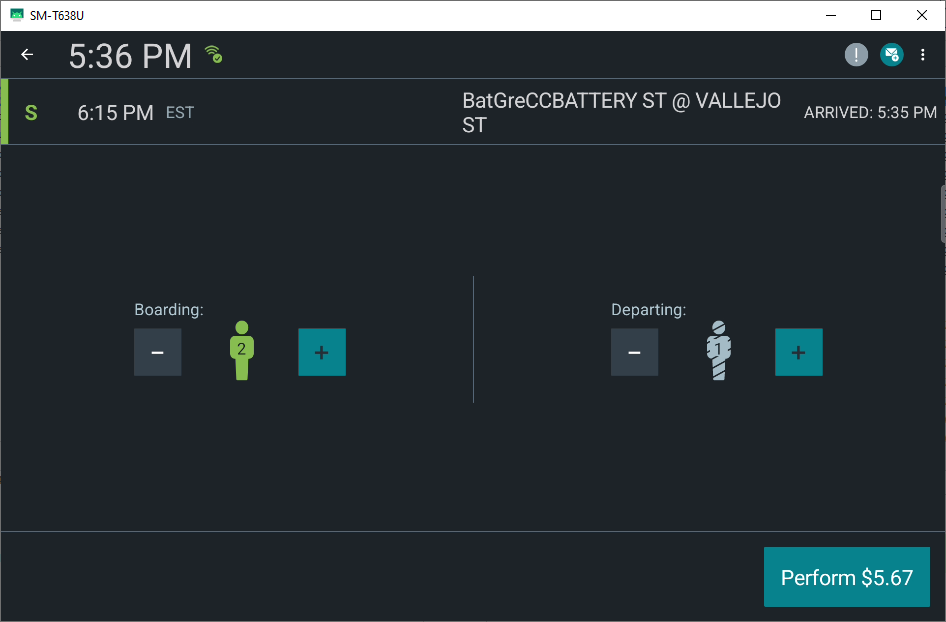
Add or remove passengers at the Flex stop.
- In Boarding, tap + or -, to add or minus the number of boarding passengers.
- In Departing, tap + or -, to add or minus the number of departing passengers.
- Optional:
If + was tapped in Boarding, then
select the Fare Type from the Fare Type pop-up
window.
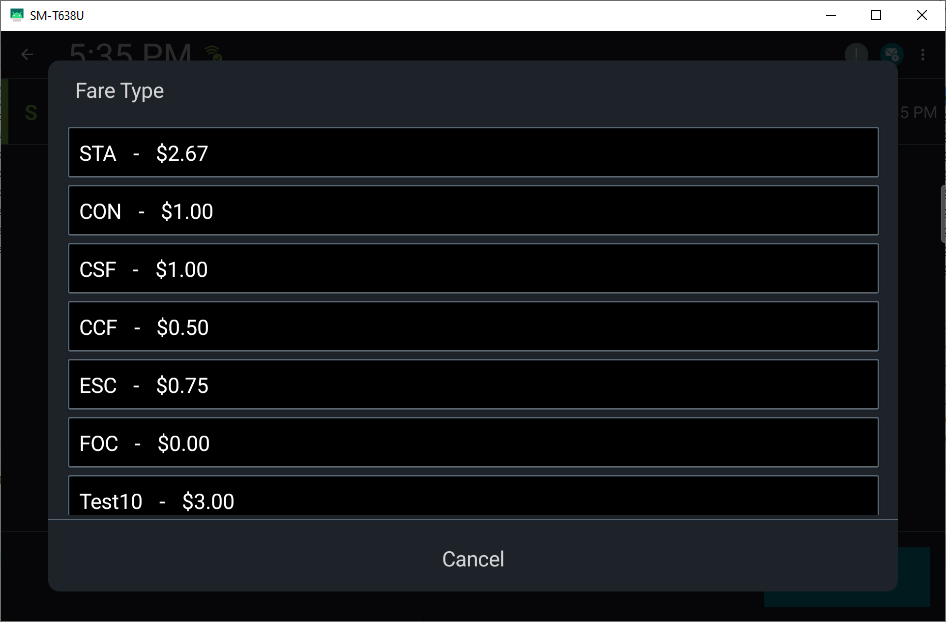
Important:If FareCollectEnable setting was not enabled, then there is no pop-up window and the default Fare Type will be used. Also, under Boarding, if - (minus) was tapped to remove a boarding a passenger, DriverMate will then display all of the fare types of those added passengers. Select the fare type of the boarding passenger to remove them. The Cancel button will not remove any passenger.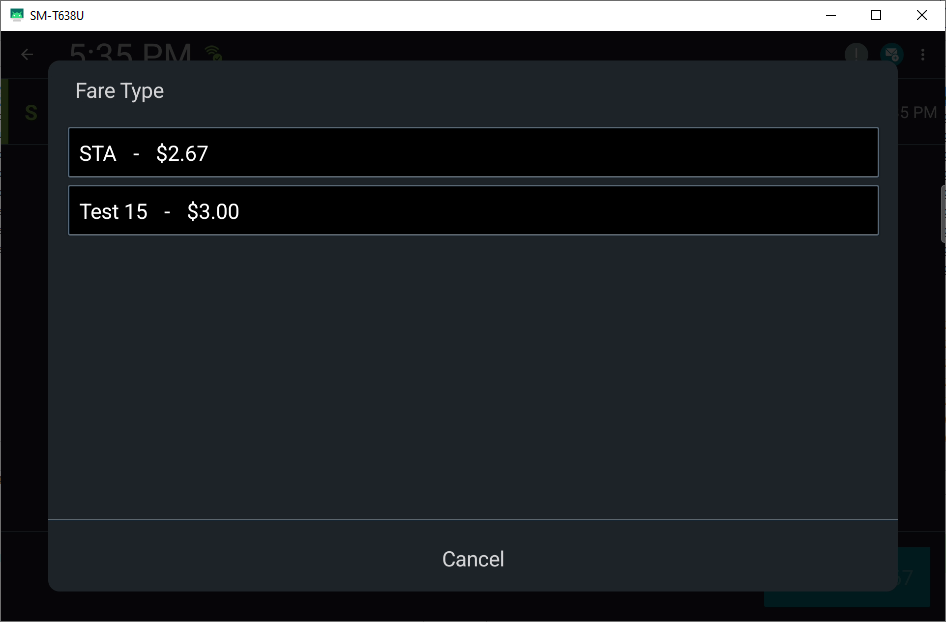
- Optional: For departing passengers, tapping the + and - button will change the number of departing passengers without a pop-up window.
-
Once you have finished boarding or departing passengers, tap
Perform to send a VDPerform message to the
MdtServer.
The Flex event was successfully performed and you have returned to the Manifest screen.