
Adding Terms and Conditions
Your legal department or a designated authority can provide the terms and conditions that apply to the purchase of the transit passes.
About this task
If the terms and conditions are available in multiple languages, the text is shown in the language specified in the client's record. To add a language in which to show the terms and conditions, contact your Trapeze representative.
Procedure
- Click .
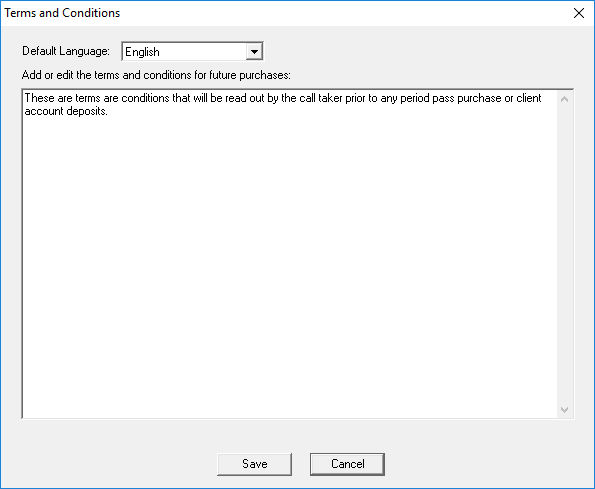
- From the Default Language list, select a language for which to define the purchase terms and conditions.
-
Type or copy and paste the terms and conditions into the text field, or modify the text
as needed.
Bold formatting, italicization, font changes, font size changes, and line spacing cannot be applied, nor can these functions be added.
- Click Save.
- Optional: To add terms and conditions in another language:
- Click Close.