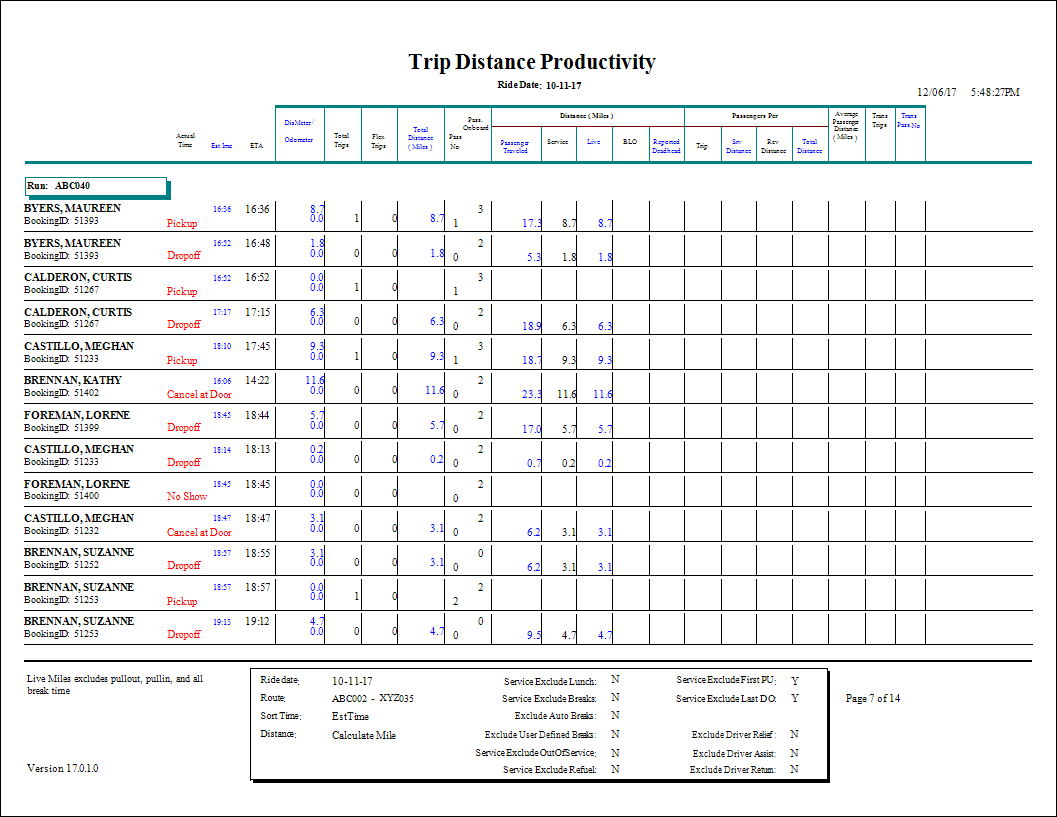
Trip Distance Productivity Details (FLEX) Report
The Trip Distance Productivity Details report provides service and revenue distance information for one or more routes, including passengers per trip, service distance, revenue distance and total distance.
| Parameter | Description |
|---|---|
| Type | Schedule type. Note: The report can only be run for live schedules. |
| Date/Weekday | Specifies whether the report is for specific date or day of the week. Choose the
option appropriate for the schedule type:
|
| From Route | First route in the report. |
| To Route | Last route in the report. |
| Provider | From the drop-down list, choose All or a specific provider for the report. |
| Service | Select any of the following to remove from service hours and distances:
|
| Show Trip Details | If selected, trip details are included. |
| Max Dis/Rte | Maximum distance for a single route. If the total distance of a route is greater than this value, it is considered an error and set to 0. |
| Include Taxi Runs | If selected, taxi runs are included. |
| Distance | If Calculate is selected, distances are based on PASS calculated distances. If Full Odometers is selected, actual odometer readings are used. The Full Odometers option is not recommended unless you have mobile data to ensure complete odometer readings. If Partial Odometers is selected, the report uses odometer readings when they are available and calculated distances when odometer readings are not available. |
| Sort Time | Sort order used in the report:
Note: The Sort Time should be set to the Est Time or the time that is entered in
the Schedule Editor. For example, do not sort on actual arrive time if you have not
entered these times. |