
Logging On
To start using Trapeze FLEX, you must log on to the system.
About this task
Depending on the password policies at your site, you may be prompted to change your
password when logging in to the system. You can also change your password after you
log in to the system.
Note: Password policies specify the frequency with which users
must change their passwords, and the number and types of characters allowed in
passwords. For more information, see your system administrator.
Procedure
-
In the Login dialog box, enter your user name in the
Login field.
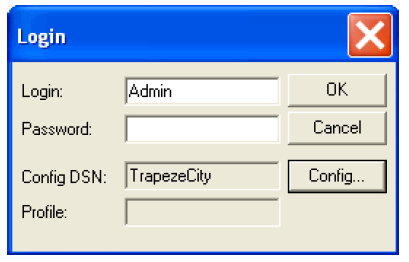
- In the Password field, enter your password.
- Optional:
To change the ODBC data source name, click Config.
The Configuration dialog box appears:In the DSN list, choose the data source name. In the Profile list, select the appropriate profile. Click OK.Note: The data source name and profile point to the FLEX configuration database and are created by your system administrator or Trapeze representative.
- In the Login dialog box, click OK.
- (If applicable) If a message box states that you have entered an incorrect login name or pasword, click OK. Repeat steps 1 to step 4 to re-enter the login name and password.
- (If applicable) If a message box states that your password has expired, click OK. The Change Password dialog box appears. Enter a new password in the New Password and Confirm Password fields, and then click OK. For more information, see Changing Your Password.