Setting Up PASS-IPA for use with ATIS

When ATIS is used for trip planning, the following steps should be taken to set up PASS-IPA.

Procedure

  1. Define ATIS-related system properties:
    1. In the Trapeze4 Workstation, click Tools > System Properties.
    2. On the Profile tab, navigate to IPA > ATIS Parameter Sets.
    3. Click Edit.
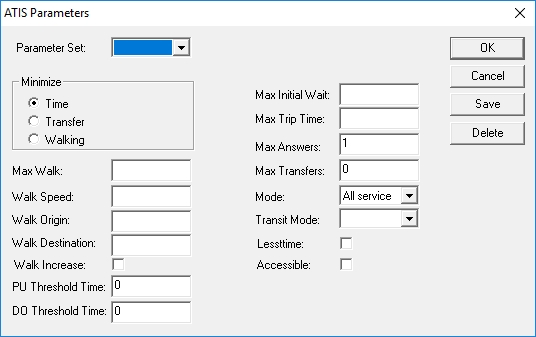
    4. Define parameter options as needed:

      Appropriate configuration of ATIS parameters varies among sites. The following includes general recommendations:
      Parameter Set
      Parameter set to use.
      Minimize
      What should be minimized for trips: Time, Transfer, or Walking.
      Max Walk
      Maximum distance a client can walk.

      This is used to calculate the time required to walk the distance between a point and a stop. Specify a maximum walk distance to have PASS-IPA ignore solutions that require distances exceeding it.

      0.99 is recommended.

      Walk Speed
      Average speed that a customer walks.

      1.75 miles per hour is recommended.

      Walk Origin
      Maximum distance to search for stops at the trip origin.

      1 mile is recommended.

      Walk Destination
      Maximum distance to search for stops at the trip destination.

      1 mile is recommended.

      Walk Increase
      If selected, the distance is increased at the trip origin/destination if no stops are located within the specified distances.

      Clearing the check box is recommended.

      PU Threshold Time
      Offset for the time range within which ATIS searches.

      This value is entered in minutes. For example, entering -30 would cause ATIS to start its search 30 minutes prior to the requested pick-up time. If this parameter is not used, ATIS will search forward from the requested pick-up time.

      DO Threshold Time
      Offset for the time range within which ATIS searches.

      This value is entered in minutes. For example, entering 30 would cause ATIS to start its (backward) search 30 minutes after the requested drop-off time. If this parameter is not used, ATIS will search backward from a requested drop-off time.

      Max Initial Wait
      Ensure that this matches the value specified in the Trapeze6 property Properties > PASS > PassInfoServer > ATIS > SearchWindowTime.
      Max Trip Time
      Maximum trip time.

      This value is entered in minutes.

      Max Answers
      Maximum number of trips to return.

      Set this to 1.

      Max Transfers
      Maximum number of allowed transfers.

      4 is recommended.

      Mode
      Transit mode to use when planning trips:
      • A (all)
      • B (buses only)
      • R (rail only)

      All is recommended.

      Transit Mode
      Transit mode to use when planning trips:
      • B (bus)
      • R (rail/subway)
      • T (train or light rail)
      • X (express bus)
      • C (commuter rail)

      Selecting no options is recommended.

      Lesstime
      This parameter does not apply to PASS-IPA.
      Accessible
      If selected, only accessible stops will be used.
    5. Navigate to Faring > FareType if no solutions.
    6. Define the value to be used for this property.
      Typically, a no fare ($0) fare type would be created and used here.
    7. Navigate to Services and define the following:
      Host address
      (Used for address matcher.) IP Address of the Service Shell.

      For example, localhost.

      IP Port
      Port number assigned to Trapeze6 Service Shell (SrvShell.exe) used for Address Matcher. (If only one Service Shell is used, then it is the Service Shell port number.)
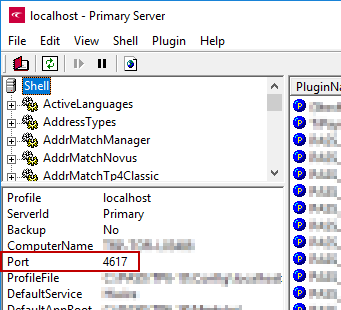
      Service Profile
      Profile name of the Service Shell (for example, Trapeze6).
  2. Set up ancillary data:
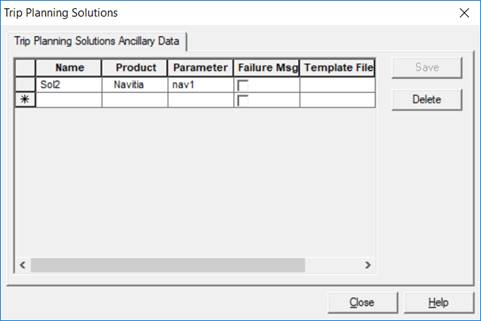
    1. Click File > Ancillary Data > General > Trip Planning Solutions.

    2. Define the following:
      Name
      A recognizable name for the solution.
      Product
      Select ATIS.
      Parameter
      Use the parameter set created in System Properties.
    3. Click Save.
    4. Click Close.
    5. Reopen Trip Planning Solutions ancillary data and verify that the new Trip Planning Solution is visible in the first row.
  3. Associate the created solution for Trapeze personal trip planning:
    1. Click Task > Personal Trip Planning.
    2. Click the Solutions tab.
    3. Modify the visible data using the Name column by selecting the Solution Name created in Trip Planning Solutions ancillary data.
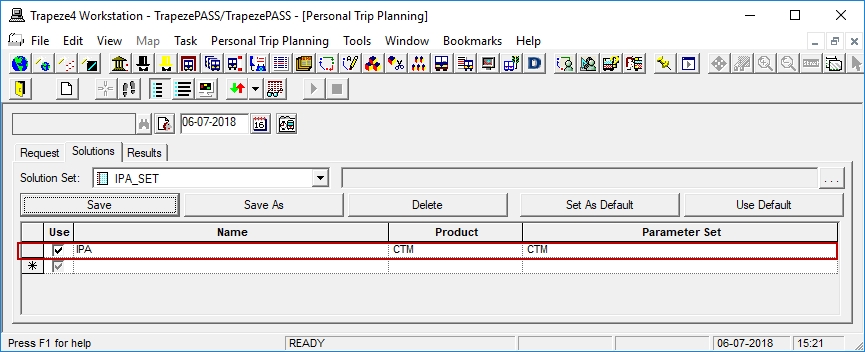
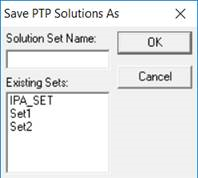
    4. Click Save As.

    5. Type a Solution Set Name for the modified version.
    6. Click OK.
  4. Define Trapeze6 properties for the Navitia trip planner:
    1. Open the Trapeze6 Client Shell.
    2. Open Properties.
      Typically, this is found under Tools > Properties, but may be found elsewhere depending on the system setup.
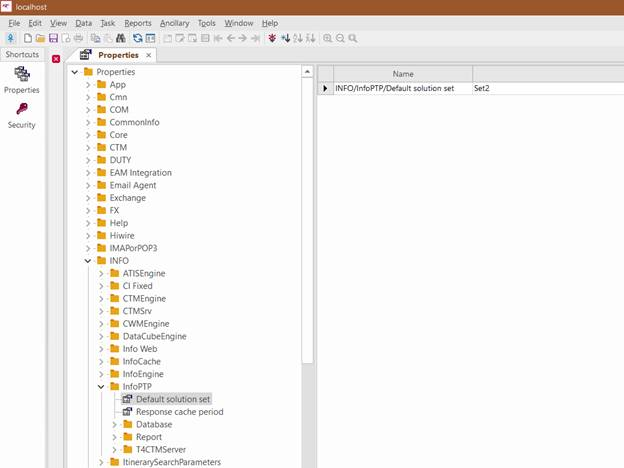
    3. Navigate to INFO > InfoPTP > Default solution set.

    4. In the Value column, type the set name used in Personal Trip Planning.
    5. Navigate to PASS > PassInfoServer > ATISServ.
    6. Type the ATIS Server information for the following:
      HostURI
      http address and service name of the ATIS server.
      HostPort
      IP port of the ATIS server.
      Timeout
      Timeout of the socket connection to the ATIS server.
      MultipleHosts

      Used if multiple hosts are used, otherwise it is left empty.

      http address (with port) and service name of the ATIS servers (used for load balancing). For example, 10:00-13:00|http://172.16.1.84:80/cgi-bin-soap/soap.cgi,http://172.16.1.85:80/cgi-bin-soap/soap.cgi;10:00-15:00|http://172.16.1.85:80/cgi-bin-soap/soap.cgi
    7. Navigate to PASS > PassInfoServer > ATIS.
    8. Type the ATIS Namespace.
    9. Select UseNewInterface.
  5. Set the appropriate switches:
    1. In Schedule Server (SchedSrv3.exe), click View > Switches.
    2. Navigate to PASS > SchedSrv > MultiModal > Enable.
      Note that PASS and Pass are two different folders.
    3. In the Boolean Switch frame, click ON.
      The switch is enabled. Enable = 1.
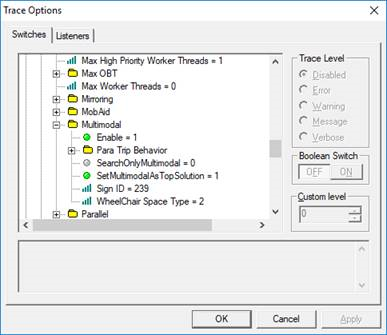
    4. Optional: Define any other Multimodal switches as needed:
      Para Trip Behavior > End of Multimodal Trip
      0
      Algorithm will determine if a Para trip connection at end of multimodal trip is needed.
      1
      Force a Para trip connection at end of multimodal trips.
      2
      Prevent a Para trip connection at end of multimodal trips.
      Para Trip Behavior > Start of Multimodal Trip
      0
      Algorithm will determine if a Para trip connection at start of multimodal trip is needed.
      1
      Force a Para trip connection at start of multimodal trips.
      2
      Prevent a Para trip connection at start of multimodal trips.
      SearchOnlyMultimodal
      Only searches multimodal solutions.
      0
      Search for both multimodal and pararun solutions.
      1
      Search only for a multimodal solution.
      2
      Search first for a multimodal solution. If a multimodal solution is not found, search for a pararun solution.
      SetMultiModalAsTopSolution
      Multimodal options are set as the top solution for each trip.
      Sign ID
      Sign ID used by CTM Server for Multimodal solutions.
      WheelChair Space Type
      Space Type number assigned to wheelchairs.