
Running the Trip Plan Analyzer Report
The Trip Plan Analyzer Report is included in the PASS Standard Reports module.
About this task
This report allows you to print the stored results of batches. Data is obtained from individual booking analysis and batch analysis.
Procedure
- Navigate to and open Trapeze Standard Reports.
- Click .
- Click Trip Plan Analysis Report.
-
In the Data Diagnostic Reports dialog box, click
Process & Run Report.
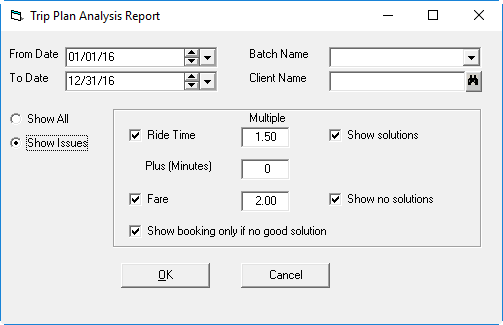
The Trip Plan Analysis Report dialog box appears.
-
Specify the options to run the report:
- From Date
- Start date of the batches for the report (ldate >= this date).
- To Date
- End date of the batches for the report (ldate <= this date).
- Batch Name
- Batch to be included in the report.
- Client Name
- Client to be included in the report.
- Show All
- Show all results.
If selected, individual issues cannot be selected.
- Show Issues
- Show only results that may have problems:
- Ride Time and Multiple
- Show results where the paratransit ride time exceeds a multiple of the fixed
route travel time; specify the multiple in the Multiple
field.
Use the Plus (Minutes) field to add additional time to this calculation.
- Plus (Minutes)
- Add additional minutes to the fixed route trip time after applying the
multiple for the ride time.
The default value is pulled from the Ride Time Extra property (found in the Trapeze4 Workstation under , on the Profile tab, under IPA).
- Fare and Multiple
- Show results where the paratransit fare exceeds a multiple of the fixed route fare; specify the multiple in the Multiple field.
- Show booking only if no good solution
- Show results that have no appropriate solutions. Booking IDs where at least
one issue-free solution exists are excluded.
Selected by default when Show Issues is selected.
- Show solutions
- Show only bookings for which solutions were found (Hint ≠ Not Found).
- Show no solutions
- Show only bookings for which solutions were not found (Hint = Not Found).
-
Click OK.
The Trip Plan Analyzer Report appears.
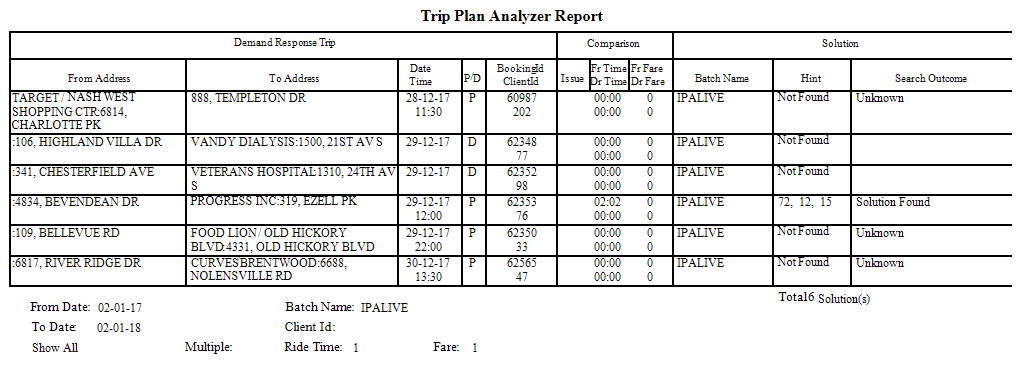 In the Comparison section, results can be interpreted as follows:
-
Issue shows Fare, Time, or Both.
If the Demand Response fare is greater that the Fixed Route fare (DrFare > (FrFare × multipleFare)), then Fare is reported.
If the Demand Response trip time is greater than the Fixed Route trip time (DrTime > ((FrTime × MultipleTime) + plusMinutes)), then Time is reported.
If both a Fare issue and a Time issue are applicable, then Both is reported.
- Fr Time is the total time of the fixed route solution (pulled from the TotalTime field in the TripPlanResult table in the database).
- Dr Time is the trip time between pick-up and drop-off of the demand response solution.
- Fr Fare is the fare of the fixed route solution (pulled from Fare field in the TripPlanResult table in the database).
- Dr Fare is the trip fare of the demand response solution (pulled from the FareAmount field in the BookingActivity table in the database).
-