
Logging On to Trapeze Reports
Data source and user password information is needed to log on to the Trapeze Reports module.
Procedure
-
Navigate to and double-click on TrapezeReports.exe.
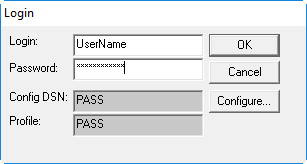
Typically, this is found in the installation folder, or a shortcut may have been created by your system administrator.The Login dialog box appears.
- Click Configure.
- Select the DSN and Profile from which to pull report data.
-
Type the Login name and
Password.
-
Click OK.
The Trapeze Reports module opens.
If an Error config DSN message appears and the system is using Windows 10, try starting the application in Administrator mode.