
Loading Fixed Format Map Data

After preparing map data for loading into the Trapeze4 map database, you can load data in fixed formats.

You can load the data in the following fixed formats:

  • TIGER/Line Record Type 1, Record Type 2 and Record Type 3
  • Ordnance Survey Integrated Transport Network (OS Mastermap ITN) Layer

When you load fixed format data, you must specify which data files to load. Because fixed format data file structures are standardized, the system knows which data from the files to save in which database tables and fields.

When loading data into the Trapeze4 map database, you can specify database tables where you want to preserve existing data. For example, if your transit site has created polygons in the map database, you can specify that you want to preserve data in the polygon database table.
Note: The mmsMap.dbd file defines all tables and fields in the Trapeze4 map database.
  1. Start MapMaker and connect to the data source where you want to load map data.
  2. Required: On the Datasource tab, in the DBD Tables area,
    • Select the check box of the database tables where you want to load data and clear the check boxes of the database tables where you want to preserve data.
    • To load data into all tables that are defined in the mmsMap.dbd file, click Select All.
    Ensure that the check box for the MapHead table is not selected. The MapHead table contains essential map information that should not be overwritten.
  3. On the Load tab, in the Format drop-down list, choose one of the formats of the data that you want to load:
    • TIGER/Line
    • OS_Mastermap ITN Layer
    The fields that are required for loading data in the specified format are shown.
    Note: The ETAK/MBS fixed format is no longer used by map suppliers. Support for this format has been discontinued.
  4. Select the Append check box.
    Note: You must select the Append check box to add data to the data source specified on the Datasource tab.
  5. Optional: If you are loading data in Tiger/Line format, for each of the following fields, click the ellipsis (...) button and select map data files.
    • Record Type 1 File – File with .bw1 extension (or .f41 in earlier versions) that contains segment end-point descriptions and attributes.
    • Record Type 2 File – File with .bw2 extension (or .f42 in earlier versions) that contains the segment shape point descriptions.
    • Record Type C File – File with bwc extension that contains the lookup table for place codes for states, counties, cities, and minor civil divisions referenced in the Record Type 1 file.
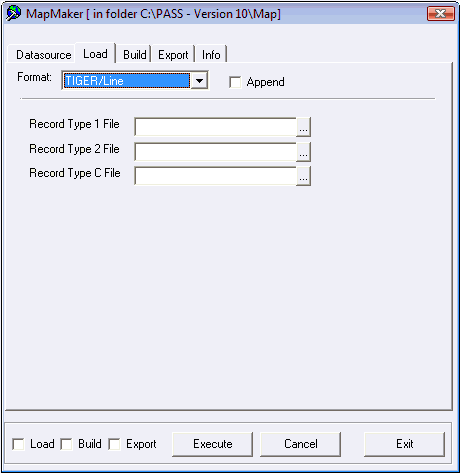
      MapMaker screen with the Load tab open
  6. Optional: If you are loading data in OS Mastermap ITN Layer format, select the map data files.
    You must have the license to load data this type of format.
  7. Select the Load check box at the bottom-left of the dialog box.
  8. Click Execute.
    A confirmation dialog box appears.
  9. Click Yes.
    The Info tab shows the progress of the data load.

    A Batch Completed message appears when the process is finished.

  10. Click OK.