Logging On to the Trapeze4 Workstation

Before working with certain Trapeze applications (for example, PASS and FX), you must log on to the Trapeze4 Workstation.

  1. Navigate to and double-click on Mmsw41.exe.
    Mmsw41.exe should be in the folder containing your Trapeze4 installation files.
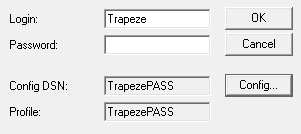
    The Login dialog box appears.
    The dialog box with information typed in the Login and Password fields, and information populated in the Config DSN and Profile fields.
  2. Type your user name and password in the in the Login and Password fields.
  3. To change the OBDC data source name:
    1. Click Config.
      The Configuration dialog box appears.
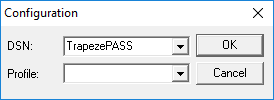
      The Configuration dialog box where the DSN and Profile to be used can be selected from drop-down lists.
    2. In the DSN list, click the data source name.
    3. In the Profile list, click the appropriate profile.
      The data source name and profile point to your database and are created by a system administrator or Trapeze Customer Care representative.
    4. Click OK.
  4. In the Login dialog box, click OK.
    The Trapeze4 Workstation appears.

    If messages appear indicating that an incorrect login name and password were used or that your password has expired, update the information and try again.