Place text in quotation marks for exact match search results.
Stop Activity Report
The Stop Activity report allows you to generate reports by Activity, Line Direction,
and Stop.
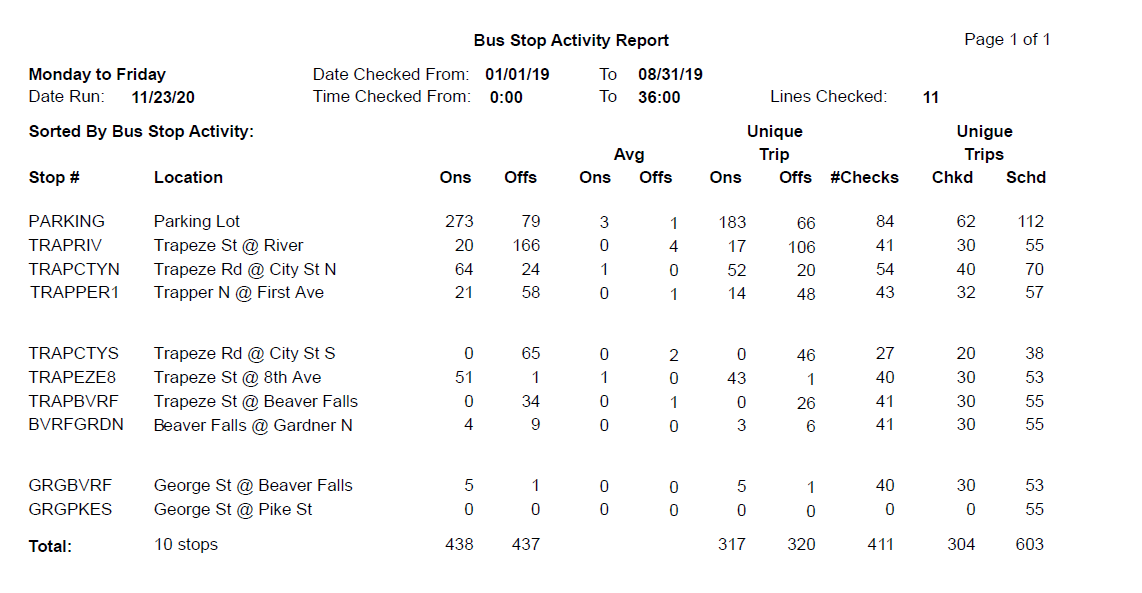
The Stop Activity (by Activity) report provides a summary of boarding and alighting
counts recorded for all stops in the selected schedule.
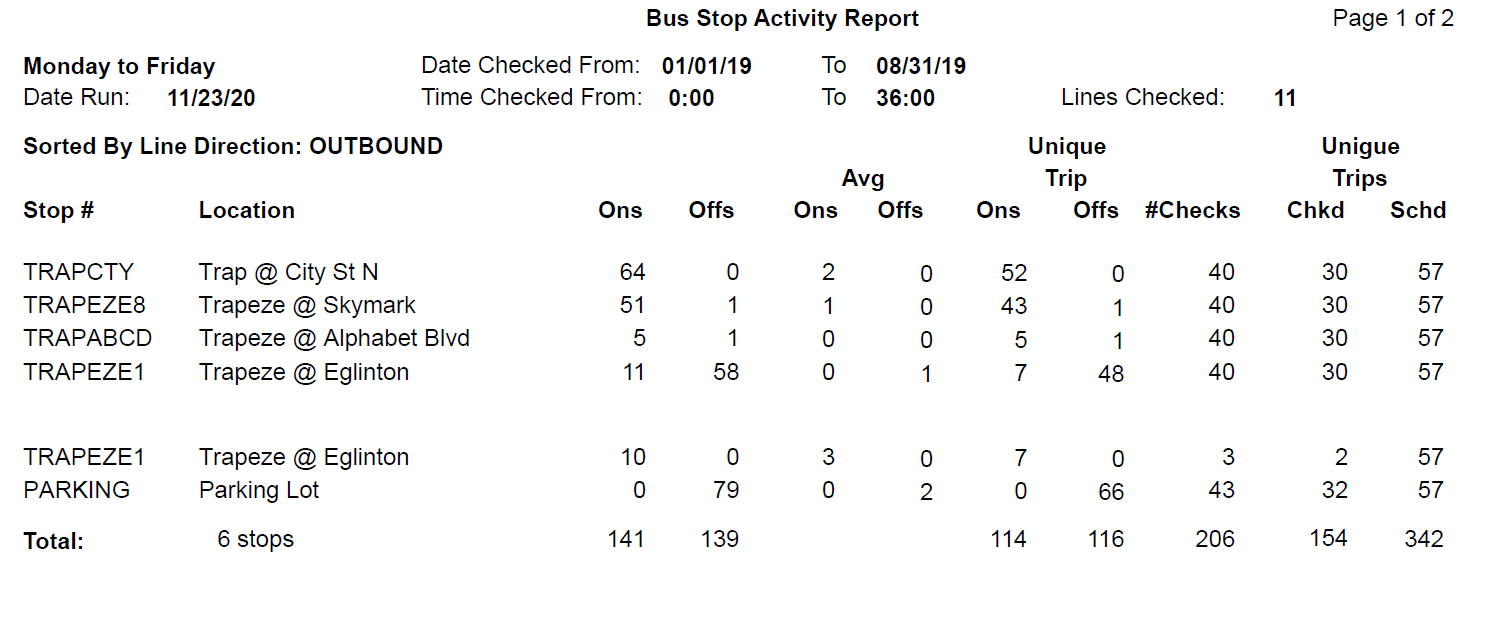
The Stop Activity (by Line Direction) report provides a summary of boarding and
alighting counts recorded for all stops in the schedule.
The Stop Activity (by Stop) report provides a summary of boarding and alighting counts
recorded for all stops in the schedule.
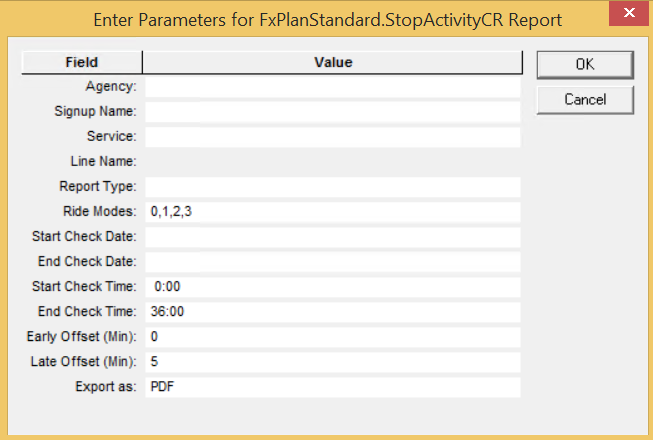
The following graphic shows the parameters of the report:
Parameter/Options
Description
Agency
(If applicable) Some transit organizations that offer continuous transit
service across several geographical areas consist of several units identified as
agencies. For example, these agencies may be categorized by transportation
mode.
Signup Name
Sign-up period
Service
Only the Service abbreviations and Service names of the selected sign-up period
are shown in the list.
Line Name
Only the Line IDs and Line names of the selected sign-up period are shown in
the list.
Report Type
Three Stop Activity report types:
By Activity
By Line Direction
By Stop
Ride Modes
Sample options on methods used to perform checks: Riding Survey Sheet, Riding
Handheld, Automated, Random. The result of your selections are shown as numbers in
the field.
Start Check Date
Start of the date range covered in the report.
End Check Date
End of the date range covered in the report.
Start Check Time
Start time of the time period of each day covered in the report.
End Check Time
End time of the time period of each day covered in the report.
Early Offset (Min)
The default is 0 minutes.
Late Offset (Min)
The default is ± 5 minutes.
Export as
Report format options are: PDF, CSV, Excel (spreadsheet), RTF, and Word (word
processor). Set to PDF by default.
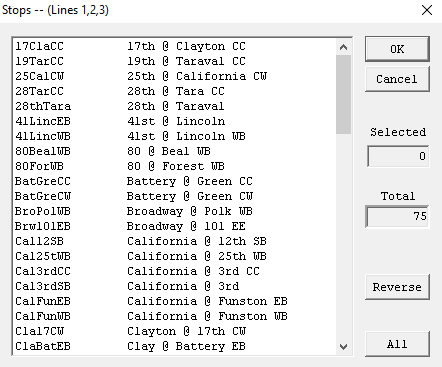
After you set the parameters and click OK, the Stop
Lines dialog box appears. It shows the list of stops within the selected
lines. You can choose to have the data of all the stops or only some of the stops in the
report. The following graphic shows an example:
Sample Stop Activity Report s
The following graphic
shows an example of Stop Activity (By Activity) report:
The following graphic
shows an example of Stop Activity (By Line Direction) report: