Place text in quotation marks for exact match search results.
Generating Text Reports
The PLAN standard reports are run in the Trapeze5 Shell using the Trapeze Reports module.
Open the Trapeze5 workstation.Most of the parameters that are available when generating PLAN reports are common to
all them.
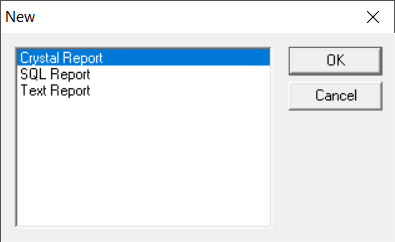
Click File > New.
The New dialog box appears.
Select Text Report, and then click
OK.
Do one of the following: or
Press CTRL+R.
Click the Settings button: .
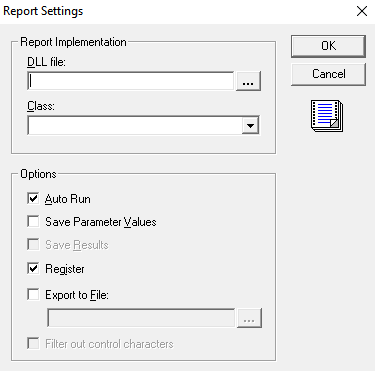
The Report Settings dialog box appears.
Perform the following steps:
Click the ellipsis button (beside the DLL file field): .
The Select File dialog box appears.
In the File name field, navigate to the
Reports folder and double-click the
FxPlanStandard.dll file.
It is automatically entered in the DLL field.
In the Class field, select the appropriate text report name. (Text reports do not have a cr at the end of their names.)
Optional: Select the Save Parameter Values check box.
This option allows you to use the same parameter values each time you run the
report.
Click OK.
Note: If you choose not to save the parameter values, the report acts like a
template. If you choose to save the parameter values initially, you can clear this
option and enter different parameters each time the report is run.
Do one of the following:
Press F8.
Click the Run button: .
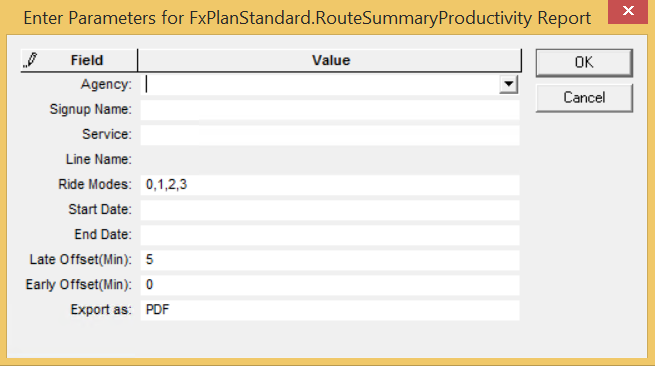
The Enter Parameters dialog box appears. The following
graphic shows an example:
Set the parameter values for the report.
Click OK.
The report is generated and appears on the screen.
To save the report, click File > Save As.
Save the report with a name that clearly identifies it in a location where you will be
able to find it later. It is saved with a trt extension.
To close the report, click the Close (X) button at the
upper-right corner of the report view.
In the Trapeze4 folder, you can create a Reports folder in which you store
standard and custom text reports in separate subfolders.

 .
.
 .
The Select File dialog box appears.
.
The Select File dialog box appears. .
.