Place text in quotation marks for exact match search results.
Searching for EAM Data
If there is a service request for a vehicle, COM users are able to view the items that
require work referred to as symptom codes.
On the screen toolbar, click the Vehicle Service Request button:
.
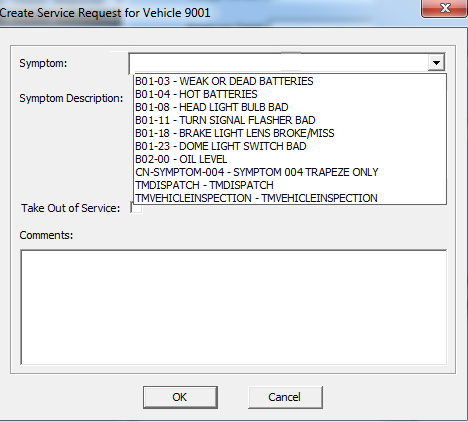
The Create Service Request for Vehicle xx dialog box
appears (with xx referring to the vehicle number). The following graphic shows a sample
list of symptom codes, that is, items that require replacement or need to be fixed in a
vehicle:
Select an appropriate code in the Symptom drop-down list.
If you do not select a symptom in the list, a message appears reminding you that you
have not selected a request item.
Optional: Select the Take Out of Service check box if the vehicle must be
taken out of service because of the work to be done.
Optional: In the Comments field, enter additional information regarding the
work required.
Click OK.
Note: When there are no symptom codes displayed in the dialog box, it means that there
is no EAM data for the specified Equipment ID/ Vin and/or Asset Category or that there
are no existing symptoms that fit the given parameters. The message, Failed
to create new service request appears.

 .
The Create Service Request for Vehicle xx dialog box appears (with xx referring to the vehicle number). The following graphic shows a sample list of symptom codes, that is, items that require replacement or need to be fixed in a vehicle:
.
The Create Service Request for Vehicle xx dialog box appears (with xx referring to the vehicle number). The following graphic shows a sample list of symptom codes, that is, items that require replacement or need to be fixed in a vehicle: