
Using Show Stop
The Show Stop feature provides more information on a bus stop on the Lines and Stops tab of the Itinerary Planning screen or on a headway sheet.
-
To show times for a stop from the Itinerary Planning screen,
highlight the leg in the bottom pane of the Details tab that uses the stop in which you
are interested. Click the Show Stop button:

-
To show times for a stop from the Lines and Stops tab, perform
one of the following steps:
- Highlight the stop you are interested in (on the left window pane) and click Show Stop.
- If you can see the stop on the map, click it and the Show Stop dialog appears.
-
To show times for a stop from the headway sheet, highlight a time for the stop you are
interested in, right-click and choose Show Stop from the menu. The
following graphic shows times for a highlighted stop.
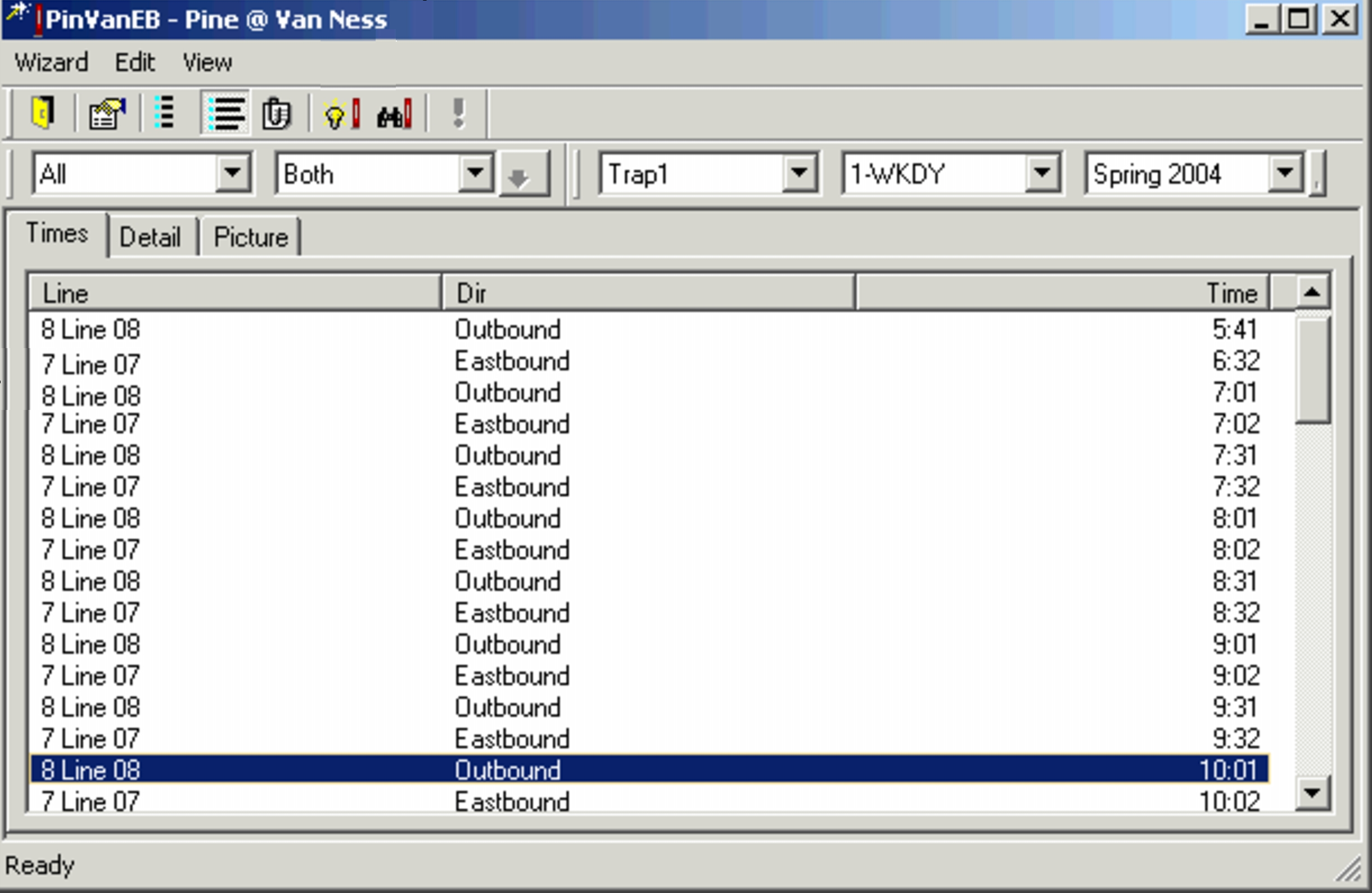
Use the scroll bar to locate previous or later trips. Stop times at highlighted stop.