
Adding Schedule Adherence to Headway Wizard
Schedule adherence refers to the on-time vehicle performance, that is, how closely the vehicle adheres to its scheduled times. You can add the Schedule Adherence column in the Headway Wizard or Show Stop dialog.
-
On the screen toolbar, click the Extra Info button:

-
In the Extra Info dialog, click Add
Lookup.
A blank field appears in the middle of the dialog.
-
Type "SA" (or the label defined in the context property) and click the green check
mark.
The field is added to the list.
- Select the check box beside the SA (or X label) field.
- Click OK.
The column is added to the grid.
The following graphics show how the column is displayed in the Headway Wizard and Show Stop grids, respectively:
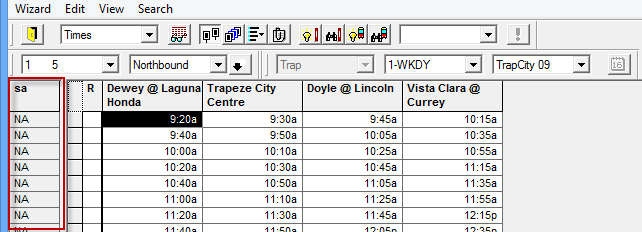
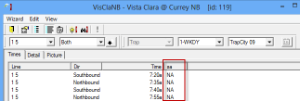
The contents of the new column depend on the values set up in the applicable context
properties. Some examples are:
- Indicates when no real time is available, the column displays a code, for example, NA.
- Shows a countdown to the actual time of arrival of the vehicle if it is less than the specified threshold.