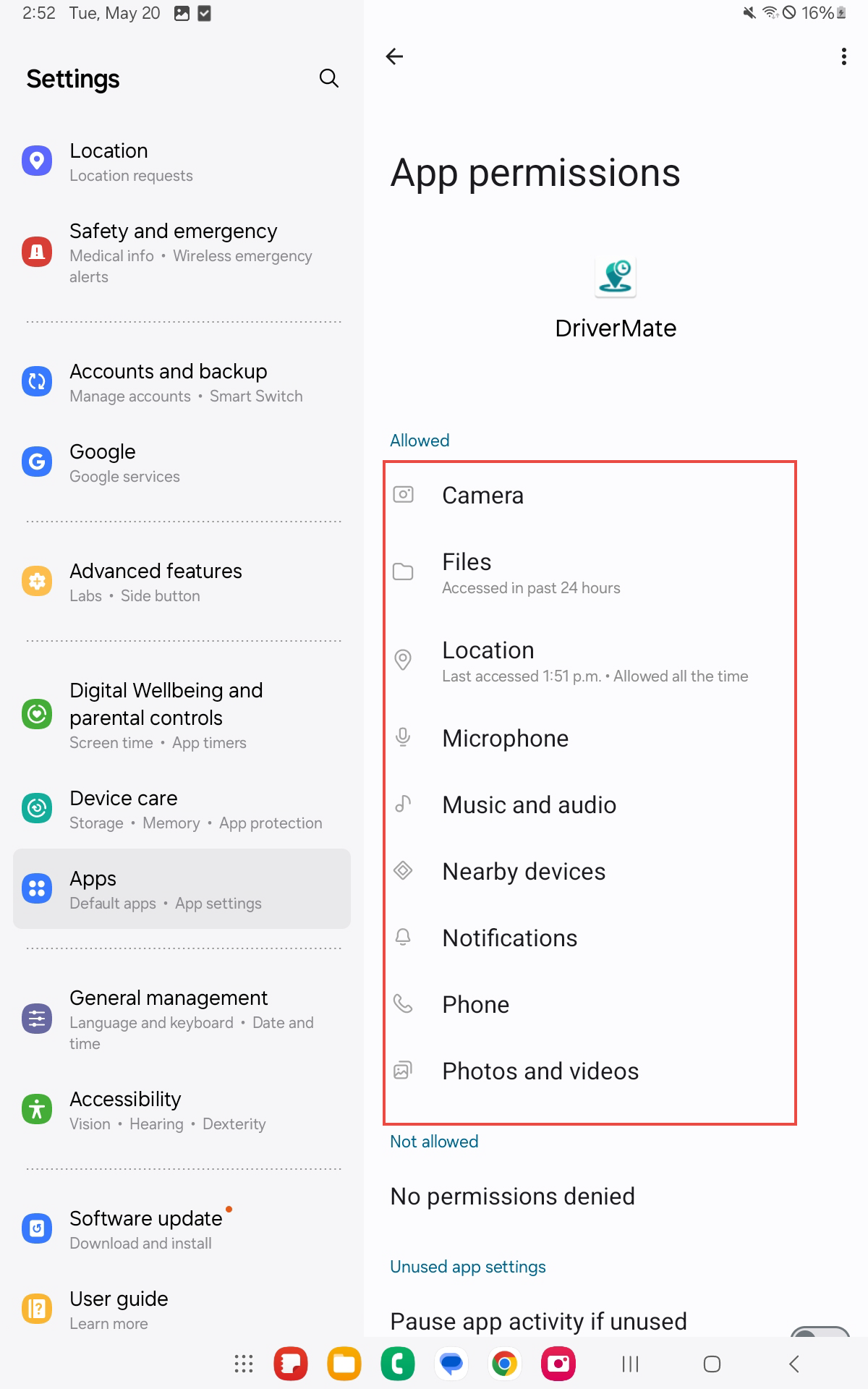
DriverMate Permissions
When you first launch DriverMate, you will be prompted to accept several permissions. Accept all permissions to allow DriverMate to function properly.
Important:
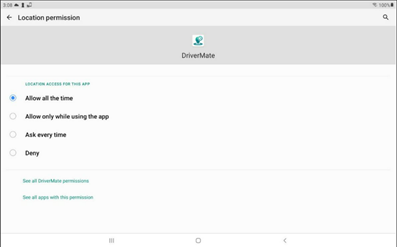
DriverMate continuously requires access
to the device’s location. Selecting anything other than Allow all the
time will cause issues within the application.
-
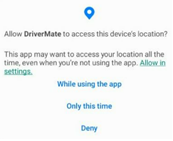
The options shown depend on the Android version of your device. In devices with Android 10 or earlier versions, select Allow all the time. If using Android 11 or later versions, the Allow all the time option is only shown in the Locations permissions screen. Select Allow in settings, then Allow all the time.Otherwise, when prompted in the DriverMate application, select Allow or While using the app to grant all permissions.
- When prompted for the Camera permission, select Always allow all to grant the permission.
- When prompted for the Microphone permission, select Allow only while using the app to grant the permission.
- When prompted for the Music and Audio permission, select Allow to grant the permission.
- When prompted for the Photos and videos permission, select Always allow all to grant the permission.
- When prompted for the Files permission, select Allow only while using the app to grant the permission.
- When prompted for the Nearby device scanning permission, select Allow to grant the permission.
- When prompted for the Notifications permission, Toggle the Allow Notifications on to grant the permission.
- When prompted for thePhone permission, select Allow to grant the permission.
To find the DriverMate permissions in your device, navigate to the Android settings. The steps to navigate there will depend on your Android device, but typically to locate Settings, look for the gear icon in your device.
To navigate to DriverMate permissions, go to Settings > Apps > DriverMate >
Permissions.