
Ancillary Data
PASS v19 contains a number of improvements within Ancillary Data.
Items with a * were introduced (partly or in whole) in maintenance releases of previous versions.
Ancillary Data is found in the Trapeze4 Workstation under .
Updated
 In Ancillary
Data, the following updates have been made:
In Ancillary
Data, the following updates have been made:- . Paraservice Types can now be marked as inactive, this will make them
not appear in the following screens:
- Paraservice Area Rules
- Trip Selection
- SchMultiParams
- Polygon Attributes
- Max OBT Factors
- ParaServiceLoad
- ServiceLine
- Clients
- ParaRuns
- ScheduleEditor
- Trip Administrator
- School Web Import
- PSA Response
- Para Master Line
However, an inactive paraservice type is still selectable within a current session. This allows you the opportunity to keep the inactive paraservice type in case you want to change it back to an active type. When a current record is linked to an inactive paraservice type, an astericks (*) will appear beside it. The inactive paraservice type will disappear once you have updated the record, closed the screen, and opened it again.
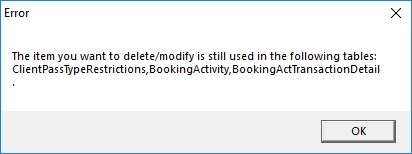
- An Error pop-up now appears if you are trying to delete an Ancillary Type that is
in use. The pop-up also notifies you of the different data that is applied to the
Ancillary Type.
- In , you can now sort the Type column into a numerical order.
- Specific payment type abbreviations (Abbr) cannot be used when creating ancillary data (). These values are used within the system and user-defined payment types with these abbreviations could have negative affects. The invalid abbreviations are CP, CAS, CRC, DEB, CHQ, WTR, ACC, INP, EZW, and IPP.
- In , Client and Booking Expressions are now added to the Object Type drop-down., which enhances the Depends On logic for Faring.
- . Paraservice Types can now be marked as inactive, this will make them
not appear in the following screens:
New
 In Ancillary Data,
the following updates have been made:
In Ancillary Data,
the following updates have been made:-
Paraservice Area Rules ancillary data found in has been updated. Now, the ParaService Area Rules dialog box contains four tabs:
-
Area Travel Rules: Allows system administrators to define Weekdays, From and To polygons, and a Description for each area travel rule associated with the selected ParaService. Multiple rules can be defined for each paraservice type.
-
Service Parameter Rules: Allows system administrators to define rules for each selected ParaService and define whether the rule applies to PASS WEB or the PASS Workstation. These rules are applied at the paraservice level.
-
Default Values: Allows system administrators to define default values for Booking Subtype Abbreviation and Scheduling Action for each selected ParaService. These values are applied at the paraservice level.
-
Passenger Type Rule: Allows system administrators to define the maximum number of each passenger type that can be included in trips for each selected ParaService, and whether the passenger count applies to PASS WEB or the PASS Workstation. These rules are applied at the paraservice level.
Note that the ParaService option N/A allows you to view area travel rules for all paraservice types. You cannot save any ancillary data for the N/A ParaService option. *
-
In , in the Payment Types dialog box, select a payment type and click Purchase rules. In the Transportation unit refund rule drop-down box, there are now two methods for refunding transportation units: Use average price and Use defined value.
Use average price is the default. If applied, the average transportation unit price for the most recent purchase (for example, of a defined ticket package) is used. If the number of transportation units refunded exceeds the number purchased in the last transaction, then the system calculates the average for transportation units from the previous purchase, and so on, until the total number of transportation units needing to be refunded is reached. If the new refund option, Use defined value, is applied, each transportation unit is refunded at the defined Value. *- Space types can now be associated with accessibility types. This update relates to the Multimodal Scheduling with Approved Bus Stops feature. The feature allows you to restrict clients to bus stops accessible for their space types when creating a Multimodal Schedule solution. To define accessibility types for space types, accessibility types (under ) must be defined. In , add a new space type or Edit an existing space type. In the Accessibility field, select the Accessibility type to be associated with the Space Type. *
-
Paraservice logos can now be viewed in Trapeze6 applications (such as PASS-Web).
To associate a logo with a paraservice, click . Define a paraservice abbreviation (Abbr), Description, and image file to be used as the Logo (for use with PASS-Web, Trapeze recommends an SVG file type with an image ratio of 1:1; the image will be displayed in PASS-Web as 80x80). Click Save.
- You can now associate AccessPoints: Bed, Curb, or Door to a paraservice type in . Access point is also applied to a booking according to the associated paraservice type.
-