
General
PASS v19 contains a number of general functional and user interface improvements.
Items with a * were introduced (partly or in whole) in maintenance releases of previous versions.
Updated
 In the
Workstation, the following updates have been made:
In the
Workstation, the following updates have been made:- Previously, Max OBT Factors could only be accessed through the Schedule Administrator, now it is available in the workstation, under .
- Trapeze Messenger can no longer be accessed in the Tools menu.
- Previously, Geocoded results could only be reviewed in the Batch Geocoder tool. Now, for more flexibility, Geocoded results are also outputed to a separate file with the format: BatchGeocodeResult_yyyymmdd_hhmmss.txt.
- In Polygon Definition, the Copy Polygon dialog box now has a select all function, which allows you to select all Polygons for a Polygon Type.
- Disability Type and Mobility Aids are now displayed in the following PASS
screens:
- Trip Administrator
- Schedule Editor
- Schedule Booking Wizard *
- Workstation can now reload properties without restarting. Previously, whenever system or profile proporties were changed, the workstation required a restart for changes to take effect.
- Trapeze Report Wizard () can now show user-defined schedule statuses that are enabled. *
- You can now
flag ParaService Types with Access Points: Bed, Curb and Door in the following
areas:
- In , in the ParaService Types tab, there is an AccessPoint column added to the table.
- In , an AccessPoint column is added.
- A
PUSH_ALL option is added to the Notification combo boxes in , in the Misc tab, and , in the tab. enables general push notifications for various notification types.
- In TP6 Services
the following updates have been made:
- In , the Agent Job Management screen nows show more detailed information for the Action / Count table. There will now be logging messages in the Details pane that explain the Action / Count table numbers. *
- In , jobs can now be exported and imported in the Agent Job Management screen. *
- A PolygonConverter tool is created to import PASS polygons to TripSpark Passenger Portal. PolygonConverter takes database info related to PASS polygons and outputs it to a .json file, this will save you time from manually redrawing PASS polygons
New
 In Dispatch
Manager, Dispatchers can now view pre and post-shift check-list forms that were created
in DriverMate and Ranger. A CheckList Results dialog will display
checklist responses, as well as, forward checklists to the appropriate agency
personnel. CheckList Results dialog can also be opened from
Dispatching, Dispatch Center, and Schedule Editor.
In Dispatch
Manager, Dispatchers can now view pre and post-shift check-list forms that were created
in DriverMate and Ranger. A CheckList Results dialog will display
checklist responses, as well as, forward checklists to the appropriate agency
personnel. CheckList Results dialog can also be opened from
Dispatching, Dispatch Center, and Schedule Editor.- In Bus Stops, you
can now save time and efficiently apply changes to stops for different bookings with
Stop Change Wizard. *
To make changes to stops with the Stop Change Wizard:
- Click .
- In menu ribbon, click the
 icon to open the Stop Change Wizard
dialog box.
icon to open the Stop Change Wizard
dialog box.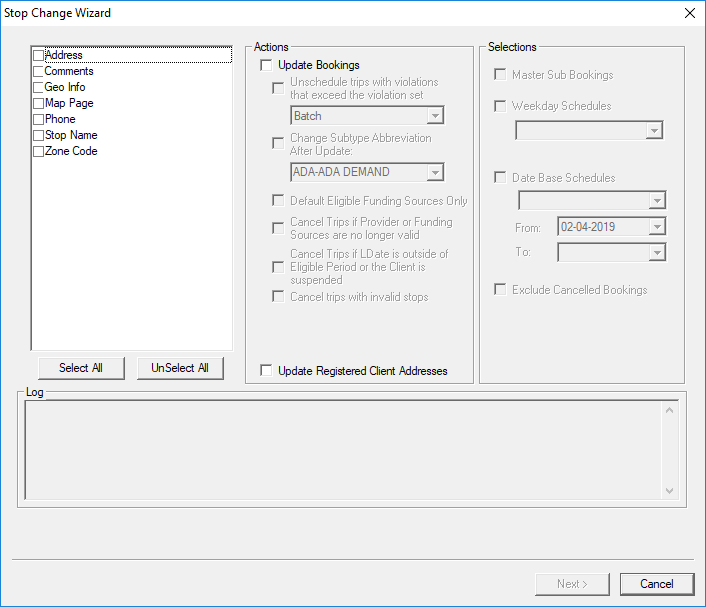
The Stop Change Wizard allows you to update the following information related to a Stop:- Address
- Comments
- Geocode Info
- Map Page
- Phone
- Stop name
- Zone Code
In the Actions and Selections pane, you can update the bookings that are related to the stop.
- A new switch: is created to control where error trips are placed. When the switch is
enabled, you can do the following:
- Move an error trip to an error run (current default)
- Move an error trip to a bumped run
- Unschedule an error trip