
Scheduling Integrated FX Bookings
Use integrated fixed route bookings to break trips into segments that can be performed by multiple vehicles.
Before you begin
About this task
Sometimes, a booking solution cannot be found for a customer who wants to take a trip from one location to another. This can result in the site losing potential business because it is unable to meet the customer's request.
Integrated FX (fixed route) bookings allow sites to better use their fleet by breaking up trips into segments performed by multiple vehicles, allowing customers to transfer vehicles to complete a trip.
For example, a requested client trip may require long distance trip that could be expensive for the client and inconvenient for the site or a provider. To assist both the client and the site or provider, PASS can connect to a fixed route trip planning system to break up the fare across different transportation modes and/or request the client to walk a short distance to a pick-up location. This method ensures that the client will ultimately be transported to his or her final destination.
To be able to use this feature, user security must allow the user to access the Trip Plan Analyzer Wizard.
Contact your Trapeze representative for more information and assistance with setting up this feature.
Procedure
- Click .
-
Provide the following mandatory information:
- Date
- Trip date.
- Time
- Pick-up or drop-off time.
- Origin Location
- Trip's Origin location.
- Destination Location
- Trip's Destination location.
- Provide any other trip information as required.
-
Click the Integrated FX Booking button:

The Integrated FX Booking dialog box appears.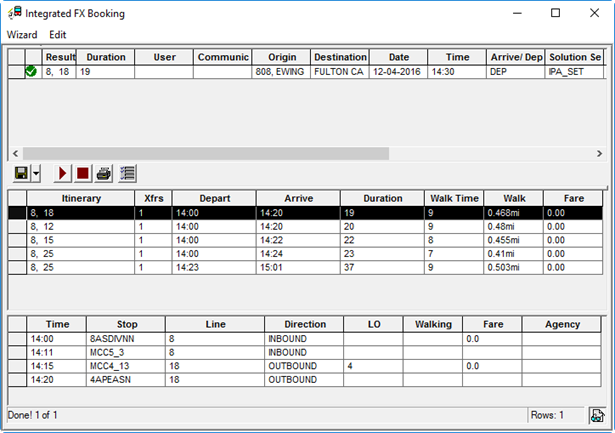
-
In the middle pane, click and review the itinerary trips to decide the best FX trip to
schedule.
In the middle pane, the Itinerary column lists the vehicles that will perform the trip, and the Xfrs column indicates how many transfers are required to complete the trip.
When a solution is selected, a preview of the itinerary is displayed in the bottom pane.
-
To select an itinerary to schedule, click it in the middle pane, click the drop-down
arrow beside the Save button:

-
Click
one of the following options:
- Save full itinerary
- Save pick-up leg
- Save drop-off leg
The Integrated FX Booking dialog box closes. - In Trip Booking, click the Itinerary tab to review the trip legs of the itinerary.
-
Click the Save button:
