
Setting PASS System Properties for Mobile Data
Specific PASS Scheduling properties are typically adjusted when mobile data is installed.
Procedure
-
In the Trapeze4 Workstation, click .
The Properties dialog box appears. System properties for PASS on the Profile tab are mainly under PASS Scheduling.
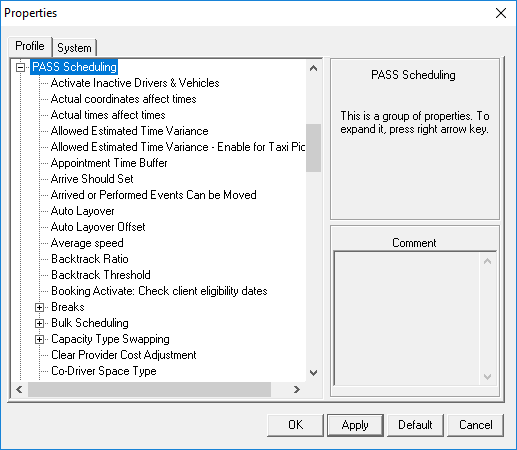
-
Set PASS Scheduling properties as follows:
- Arrive Should Set
- Set to Both or as advised by your Trapeze representative EvOrder: Max Value: Set to 99, 999, 999.*
- Incident Est Time Threshold
- Set to 23h00.
- Incidents for today only
- Set to Yes.
- Incidents: Create for NoShows
- Set to Yes.
- Incidents: Create for ReOrdered
- Set to Yes.
- Incidents: Create for Nodes
- Set to Yes (if a FLEX site and applicable).
- Incidents: Create for Stops
- Set to Yes (if a FLEX site and applicable).
- Incidents: Write TT to Msg Center
- Set to No.
- Perform Should Set
- Set to Both or as advised by your Trapeze representative.
- Flag Stop Booking Sub Type
- Enter the name you added for the MDT booking subtype, for example, MDT.
-
Set Signature properties as follows:
- Background Color
- Foreground color
- Line Width
- Set the width of the field where signatures are created.
- Signature File Folder
- Set the appropriate pathname to the folder where you want the signature files stored.
- Restart the Schedule Server for parameter changes to take effect.