
Defining Auto Top Up Jobs
EZ-Wallet users can use the Auto Top Up job to create a .csv file of clients who have used the automatic top-up feature and send those clients an update email about the status of their top-up.
Before you begin
The user must be granted the security permission. This allows users to run the Auto Top Up job.
Procedure
-
Select a job from the grid.
The scheduled job record settings are shown in the Job Schedule frame.
-
Confirm the Agent Name
PassScheduleAgent is defined for the job schedule.
The selected agent determines the options that are available in the Job Type field.
-
Click Job Data.
The Job Data dialog box appears.
-
Do the following: .
- Define SchType as LIVE
- Define Schedule as N/A.
- Define Offset as 0.
- Define Job Type as Auto Top Up.
-
Click New.
The New Batch dialog box appears.
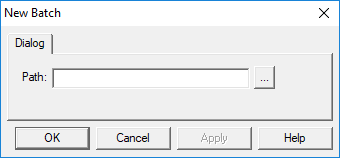
- In the Auto Top Up dialog box, define the Path to which the .csv file should be saved.
- Click OK.
-
Click OK.
The Job Data dialog box closes.
- Click Save.
Results
Emails are sent to individual clients (based on information associated with their ClientId) indicating the result of their transaction (Success or Failure) and any other relevant information.