
Defining Client Suspension Jobs
(Requires EZ-Wallet) Clients can be automatically suspended or unsuspended based on age range if their EZ-Wallet purse balance falls below a specified amount.
Before you begin
About this task
Client suspensions and unsuspensions can be tracked using the Track Code SUS in the Tracker Action Browser. SUS uses the PASS/ClientSuspension and PASS/ClientUnsuspension Tracker Actions.
Procedure
-
Select a job from the grid.
The scheduled job record settings are shown in the Job Schedule frame.
-
Confirm the Agent Name
PassScheduleAgent is defined for the job schedule.
The selected agent determines the options that are available in the Job Type field.
-
Click Job Data.
The Job Data dialog box appears.
-
Define the schedule type and date information:
-
In the Job Type field, select Client
Suspension.
If no Job Types are available, confirm that an Agent Name has been selected in the Job Schedule frame of the Schedule Job Agent dialog box.
-
Click New.
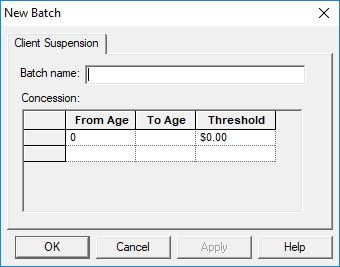
The New Batch dialog box appears.
-
Type the Batch Name for the job step.
Only one job step is needed for Client Suspension job types.
-
In the From Age cell in the first row, type the youngest age for
which clients will be suspended at the defined threshold.
Age ranges must be specified beginning at age 0.
-
In the To Age cell in the first row, type the oldest age for
which clients will be suspended at the defined threshold.
Age ranges can be specified up to age 130.
-
In the Threshold cell in the first row, type the grace amount
that clients must be equal to or less than to be suspended.
If the client has an overdraft limit, that amount will be added to the threshold amount before the client is suspended. For example, a client who has an overdraft limit of $100 and a client suspension threshold of $200 will be suspended if they owe $300 or more.
-
Add additional rows of information until all age ranges are defined.
Age ranges are defined in numerical order. For example, 0–5, 6–12, and so on.
- Click OK.
-
Click OK.
The Job Data dialog box closes.
- Click Save.