
Refunding Transportation Units
Refunds for transportation units are normally processed using the original method of payment.
Before you begin
About this task
Procedure
- Search for and select the Client for seeking a refund for transportation units.
- Click the Transport Units tab.
-
In the Purchased Transport Units frame, click Refund.
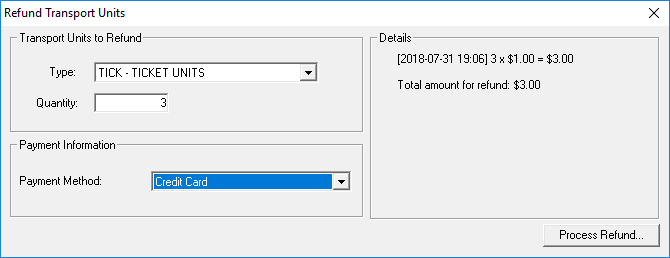
The Refund Transport Units dialog box appears.
-
Provide the following information:
- Type
- The transportation unit type to be refunded.
- Quantity
- The number of transportation units to be refunded.
- Payment Method
- The payment method type that will be used to refund the client.
The refund transaction details appear in the Details frame. It works backwards from the current date, and if several transportation units were purchased on the same day, the lowest purchase price is refunded. -
Click Process Refund.
The Confirmation dialog box appears.
-
Provide the information associated with the refund payment method type:
If the client is using Complete these fields Cash, their purse, or on account - Status
-
The status of transaction.
Status options are defined in ancillary data.
- Reason
-
The reason for the transaction.
Reasons are defined in ancillary data.
- Comments
- Any comments about the transaction.
Credit card
- Card type
- The card type in the list.
- Status
- The status of transaction.
- Reason
- The reason for the transaction.
- Please enter the Confirmation Number
- The confirmation number provided by the issuer after the transaction has been processed. If a mask is used (for example, #####), typing the confirmation number will overwrite the mask as the number is typed.
- Comments
- Any comments about the transaction.
Debit card - Card type
- The card type in the list.
- Status
- The status of transaction.
- Reason
- The reason for the transaction.
- Please enter the Confirmation Number
- The confirmation number provided by the issuer after the transaction has been processed. If a mask is used (for example, #####), typing the confirmation number will overwrite the mask as the number is typed.
- Comments
- Any comments about the transaction.
Check - Card type
- The card type in the list.
- Status
- The status of transaction.
- Reason
- The reason for the transaction.
- Cheque #
- The check number.
- Cheque Date
- The date the check was issued.
- Comments
- Any comments about the transaction.
Wire transfer - Status
- The status of transaction.
- Reason
- The reason for the transaction.
- Wire transfer #
- The wire transfer number.
- Transfer Date
- The date the transfer was done.
- Comments
- Any comments about the transaction.
- Click OK.