
Adding Canned Messages
Canned messages are standardized routine messages that the dispatcher or driver can send through the mobile computer.
About this task
Procedure
- In the Bin folder, click the MSrv41_2.exe file. Alternatively, click the shortcut on your desktop if you have created one.
-
In the Mdt Server screen, click ServerEdit In Canned Msg or Edit Out Canned Msg.
The following graphics show the In Canned Msg Editorand Out Canned Msg Editor dialog boxes, respectively.
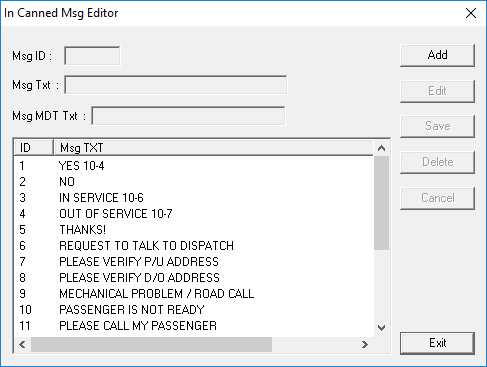
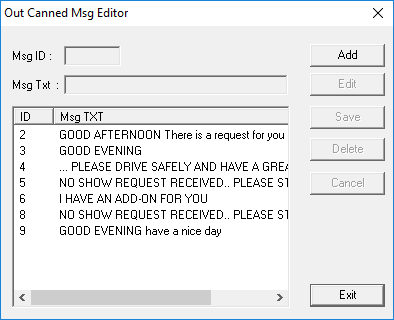
- Click Add.
- In the Msg ID field, type a number for the new message. (Duplicate numbers are not allowed.)
- In the Msg Txt, type a brief message.
- (For In Canned Msg Editor only) In the Msg MDT Txt field, type what you want the driver to see on the mobile computer screen.
- Click Save. The new message is added to the list on the lower right section of the dialog box.
- Click Exit.