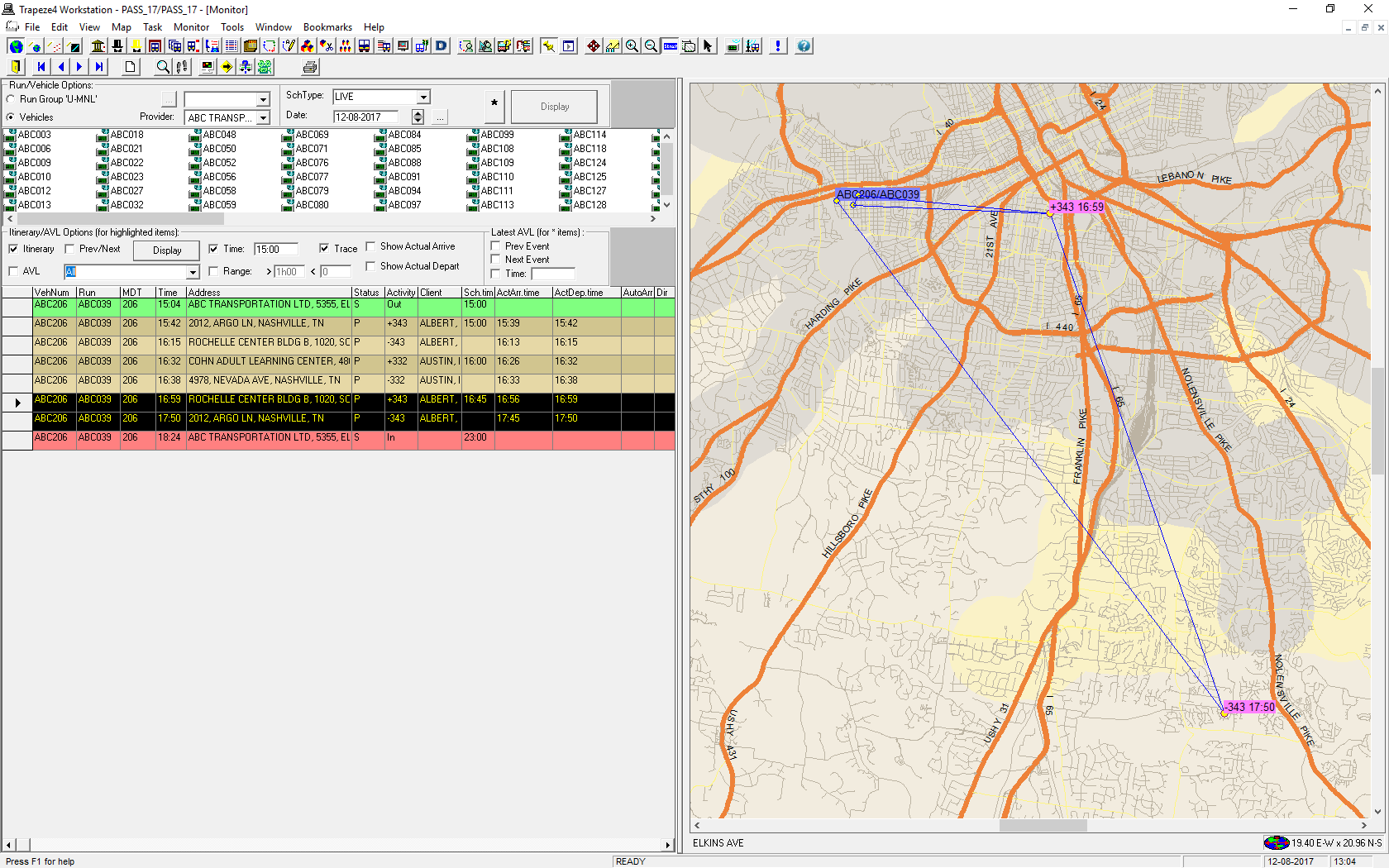
Viewing Itineraries or AVL
Define viewing criteria in the Itinerary/AVL Options frame to show information in the Itinerary/AVL grid and on the system map.
Before you begin
Procedure
- In the Run/Vehicle Options frame, click Runs or Vehicles.
- Click Display.
-
Highlight the run or vehicle that you want on the list.
The screen shows selected runs or vehicles one at a time.To browse the list, use the navigation keys on your keyboard. For example, the up or down key.
-
In the Itinerary/AVL Options frame, select the
Itinerary and/or AVL check box.

The details of the selected runs or vehicles are shown. -
Do one or more of the following:
To... Do this... Define a context time Select the Time check box and overwrite the time in the field beside it. If Prev/Next is selected, only the event immediately before the defined time and the event immediately after the defined time will be shown.
If Itinerary is selected, then all events that occur after the defined time are shown.
Show events that immediately precede and follow the time defined in the Time field Select the Prev/Next check box. If no time is defined, the current system time is used.
Create a time range Select the Range check box and type values in the greater than and less than fields. Show events or AVL reports in sequence on the map Select the Trace check box.
To avoid overloading the map with a lot of information, use the time options to control or select just one run or vehicle to view.
Show event Time and Activity information on the map Select the grid row of any events to be shown on the map. Use CTRL to select more than one row.
- Click Display.
Results