
Viewing Itinerary and AVL Data
The filters on the Run/Vehicle Options pane allows you to view either a list of runs or vehicles.
About this task
Procedure
-
In the Run/Vehicle Options frame, choose one of the following options:
-
- Runs
- Click to view itinerary and/or AVL data by run number.
Then, select the type of run to view:
- F
- Flex
- Fx
- Fixed
- P
- Para
- T
- Taxi
-
- Vehicles
- Click to view itinerary and/or AVL data by vehicle number. If some runs were assigned to the selected vehicles but later unassigned during the day, all the AVL records associated with those runs are shown in the search results.
-
- Optional: In the Provider list, select the providers whose runs or vehicles you want to view.
- In the SchType field, select a Live or Template schedule type.
-
Do one of the following:
- In the Date list, select the appropriate date.
- Click the ellipsis button beside the Date field. In the Select Schedule dialog box, click the appropriate date and click OK.
- In the Run/Vehicle Options frame, click Display.
Results
The runs or vehicles are displayed in the field below the Run/Vehicle
Options frame.
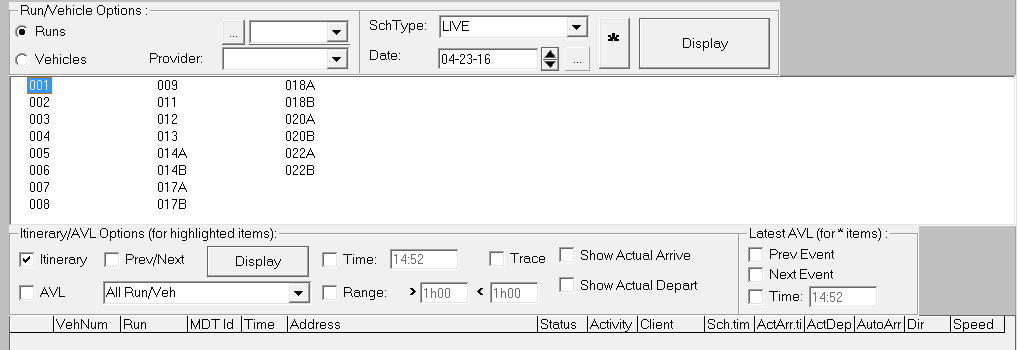
The run numbers of runs assigned to vehicles that have MDT IDs are shown with an MDT
icon:

The run numbers of runs that are assigned to vehicles without an MDT ID are shown as is.
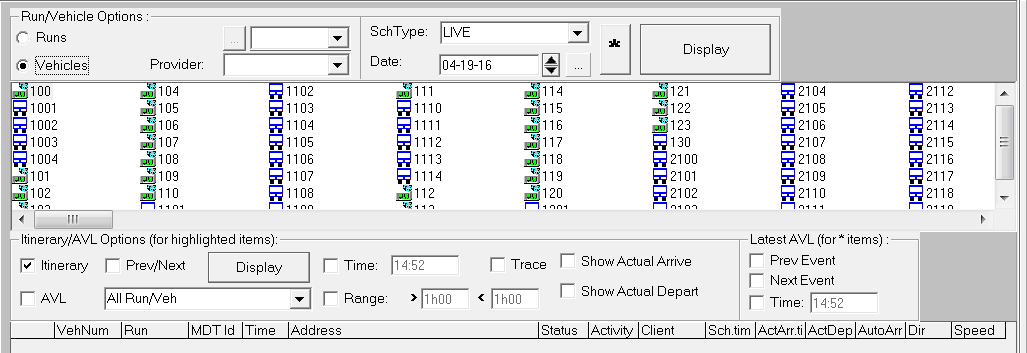
The vehicle numbers of vehicles that have MDT IDs are also shown with the MDT symbol. The
vehicle numbers of vehicles that do not have MDT IDs are shown with a blue bus icon:

To view AVL data, you must choose a run with the MDT symbol.