
Scheduling Trip Bookings from Dispatch
In addition to scheduling or rescheduling trips from Trip Administration and Schedule Editor, the system allows you to schedule unscheduled trips from Dispatch.
Before you begin
Procedure
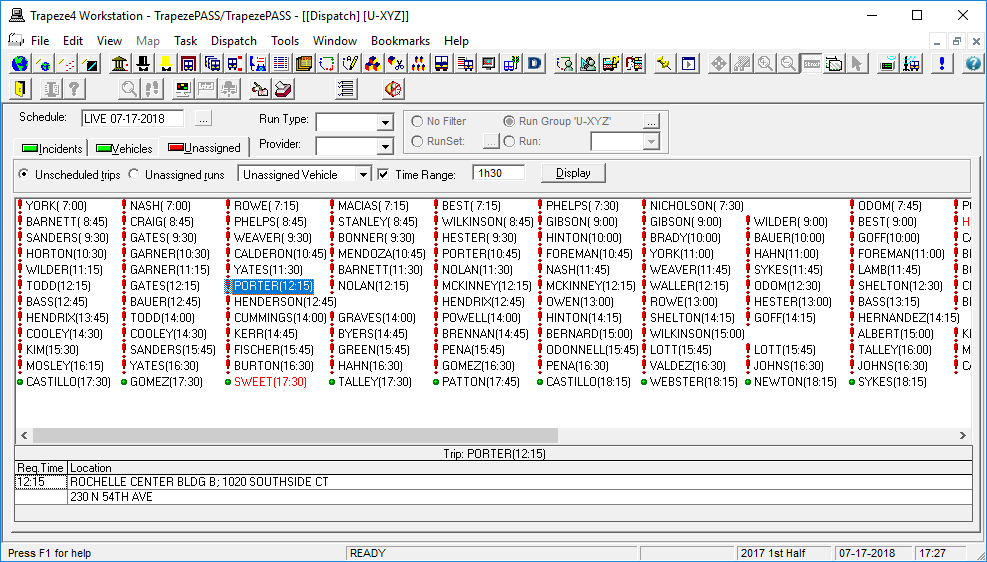
- Select the correct Schedule.
- Click the Unassigned tab.
- Select the Unscheduled Trips option.
-
Select the Time Range check box and type a length of time.
For example, if you type 1h30, the system shows all unscheduled trips booked for travel from the start of the day up to the current time and all unscheduled trips booked for travel 1 hour and 30 minutes ahead of the current time.
-
Click Display.
The red exclamation marks trips whose booking times have passed or quickly approaching. These trips require immediate attention.
The green dots indicate future unscheduled trips of which you should be aware.
The lower pane of the screen shows detailed information for any selected booking.
- Right-click on a trip and click Reschedule.