
ParaCutter Context Properties
Specific context properties apply when using ParaCutter.
To view the ParaCutter context properties, in the Trapeze6 Client shell, click .
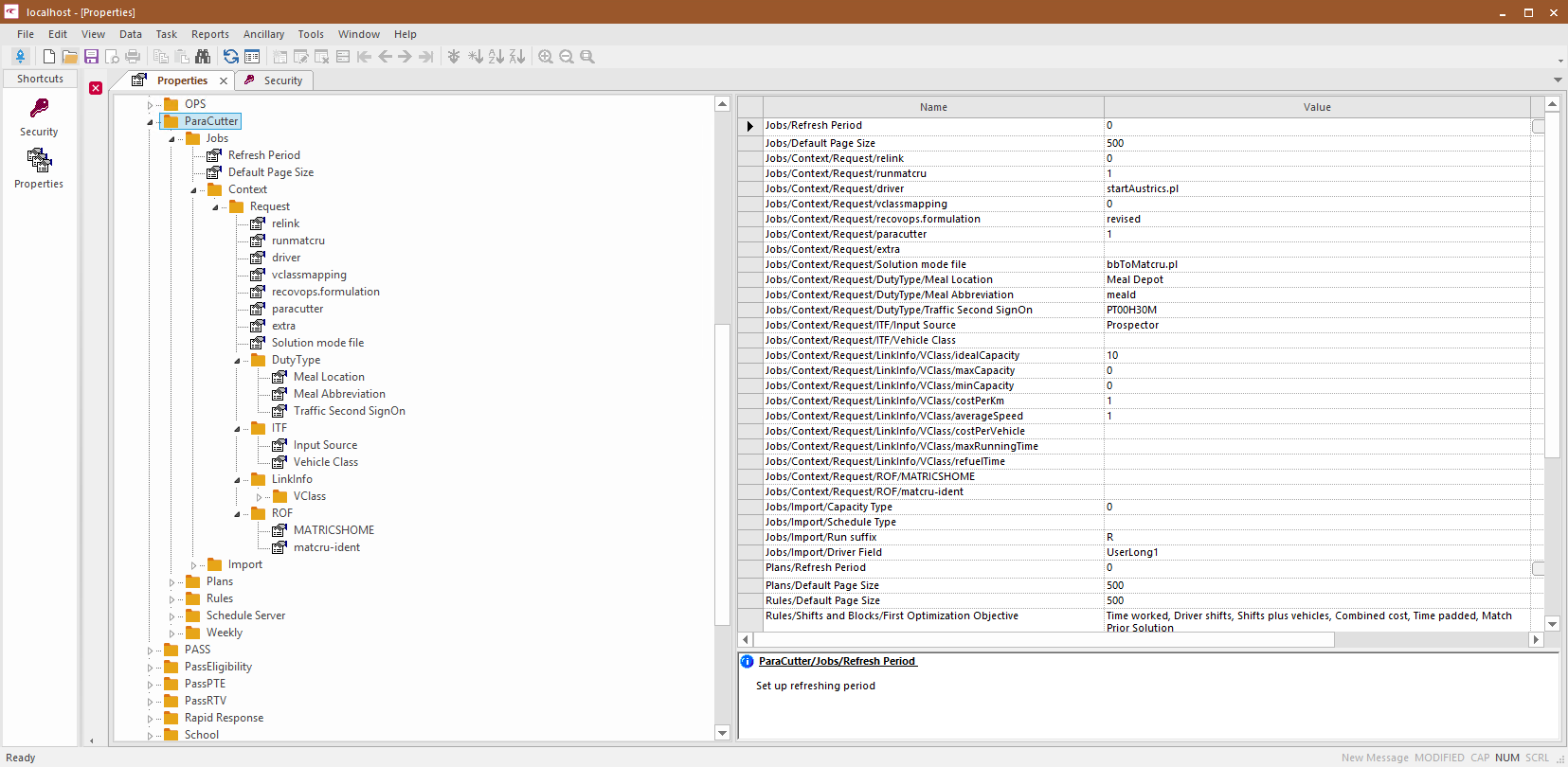
| Property | Description |
|---|---|
| Amount of time after which the system refreshes the jobs search to show status updates. Leave at default. | |
| Default maximum number of rows in the job search results. | |
| Leave at default. | |
| Leave at default. | |
| Leave at default. | |
| Leave at default. | |
| Leave at default. | |
| Must be set to 1. | |
| Leave at default. | |
| The three levels of solution quality range from the quickest to the most efficient. The installation must include a .pl file (for example, MatcruDraft.pl, MatcruStd.pl, MatcruFull.pl) for each of these three options in the bin directory. Enter the name of the .pl file to use as the solution mode file. | |
| Value used within the call to Matcru. | |
| Value used within the call to Matcru. | |
| We recommend that this be set to a value larger than your shift break lengths and smaller than the minimum turnaround time when a vehicle returns to the garage before it can be scheduled to go out on another run. | |
| Select whether you want to use PASS runs or the adjusted run requirements from the Forecast Grid. | |
| One letter code for the vehicle class to be associated with all service requirements. This must correspond with a code used in the Rules and Constraints/Vehicles section. | |
| Future use. Leave at default. | |
| Future use. Leave at default. | |
| Future use. Leave at default. | |
| Future use. Leave at default. | |
| Future use. Leave at default. | |
| Future use. Leave at default. | |
| Future use. Leave at default. | |
| Future use. Leave at default. | |
| Value used within the call to Matcru. | |
| Value used within the call to Matcru. | |
| Capacity type for all imported runs set as the default. | |
| For testing purposes, create a special schedule type in PASS and copy live schedules to a schedule of this type. Type the schedule type you are using for this purpose. | |
| All runs imported into PASS will start with whatever characters you put here. Leave this blank if you want runs to be named using the matching logic described later. | |
| Column heading where the driver ID is stored. | |
| Amount of time after which the system refreshes the search for plans. Leave at default. | |
| Maximum number of rows in the plans search results. Leave at default. | |
| Number of maximum number of rows in the rule search results. Leave at default. | |
| Comma-separated list of options to be available in the corresponding section of the Runcutter/Jobs screen. | |
| Comma-separated list of options to be available in the corresponding section of the Runcutter/Jobs screen. | |
| Comma-separated list of options to be available in the corresponding section of the Runcutter/Jobs screen. | |
| Number of days that you can look back in the Validate dialog box. | |
| Default port for connecting to the Schedule Server. | |
| Default host name for connecting to the Schedule Server. | |
| This is selected by default. This means that in the Assign Drivers dialog box, the drivers list shows the names of drivers in seniority order. If not selected, seniority date is not used. The employee ID numbers of the drivers are listed in ascending order. | |
| If a value in minutes is saved here, the Build Weeks dialog box can add this amount of time to the pay hours. | |
| If a value in minutes is saved here, the Build Weeks dialog box can add this amount of time to the pay hours. | |
| If a value in minutes is saved here, the Build Weeks dialog box can add this amount of time to the pay hours. | |
| If a value in minutes is saved here, the Build Weeks dialog box can add this amount of time to the pay hours. | |
| Default is 0. If a value in minutes is saved here, the Build Weeks dialog box can subtract this amount of time from the pay hours for any shift that has no explicit lunch break in the runcut and for which the Pay Hours exceeds the Lunch Threshold time. | |
| Default is 0. If a value in the nnHmm format is saved, the Build Weeks dialog box can subtract the Lunch time property in minutes from Pay Hours for any run with no explicit break and whose Pay Hours exceeds this value. |