Exporting Workspaces

You can export a workspace on your machine to the network so that others at your site can see how your workspace is set up or use it themselves.

Open the Settings screen.
When you encounter an issue that requires support from Trapeze, you may be asked to export your workspace and email it to us. This way, your Trapeze representative can see BlockBuster Web as you see it and would be in a better position to guide you through the steps you may need to perform.
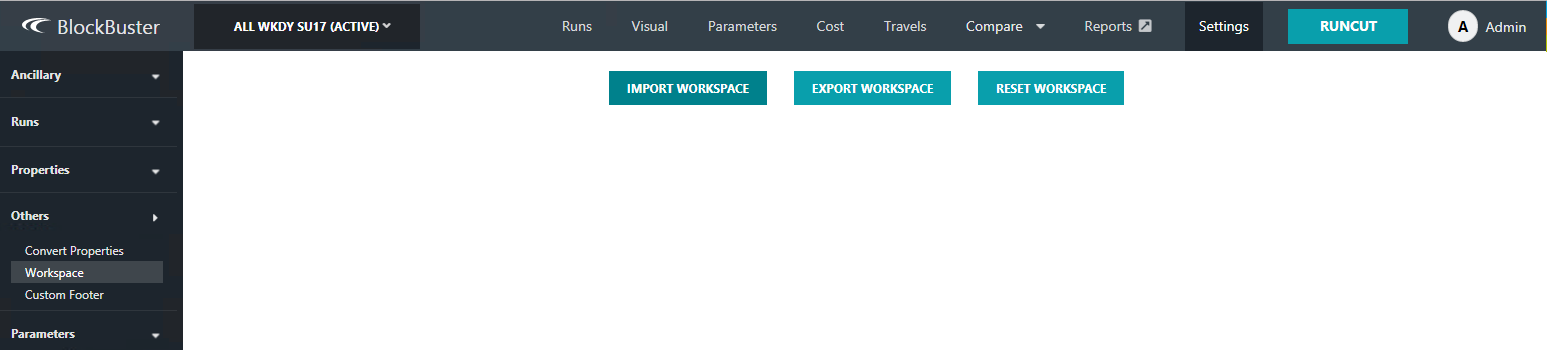
  1. On the left pane, click Others > Workspace.
    The Worskpace screen appears.
    Workspace screen
  2. Click Export Workspace.
    A message appears stating that the workspace has been exported successfully.