Initial Runcutting with Block Optimizer Parameters
When performing an automatic runcut with the Block Optimizer algorithm, you can use the parameters used in a regular runcut and other parameters specific to Block Optimizer.
If you do not wish to include some work, make sure they are frozen. Runs that are forced
to a specific run type show an M (Modified) and are considered frozen
for purposes of the runcut.
Make sure that the node/stops where you want the relinking of
blocks to occur are labeled for relinking: marked with a "J." (This is performed in the FX
Route Definition screen.) The following example shows a node/stop marked with a "JR", which
means it is used for relief and relinking.
The following steps are performed for an initial runcut, that is, the blocks have not
been previously runcut and all the trips appear on the right pane of the screen.
In the main menu, perform one of the following steps:
Click BlockBuster > Cut.
Click the Cut button:
The Cut dialog appears with the Block Optimizer
options activated.
Click the Block Optimizer option.
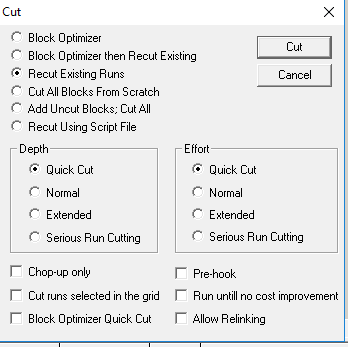
The Depth and Effort options
together with the Chop-up only, Pre-hook,
and Run until no cost improvement options appear shaded.
Select the appropriate option depending on what you want to achieve:
Option
Description
Block Optimizer Quick Cut
Provides a basic level of depth and effort to the runcut based on the selected
parameters.
Allow Relinking
Blocks are moved and re-linked as they are runcut. (In Trapeze FX, if this
option is selected, changes are shown in the Blocking screen.)
The Cut runs selected in the grid option is used only when you
have existing runs.
Click Cut.
If you selected the Allows Relinking option, a message may
appear advising you that trips belonging to a different exception content will be uncut.
Click OK to proceed.
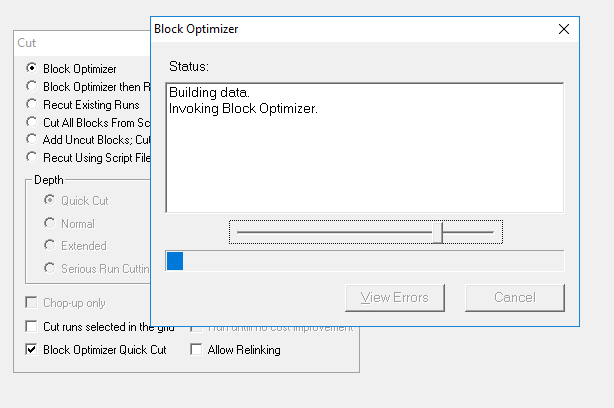
The runcutting status appears in the Block Optimizer
dialog. The View Errors and Cancel buttons
appear shaded. When the process is completed, the Status field
shows that the data has been imported successfully. The View Errors
button is activated and the Cancel button is changed to
Close.
Click Close.
The runcut proceeds and the runs appear on the left grid of the screen and costs
are applied using the BlockBuster parameters.



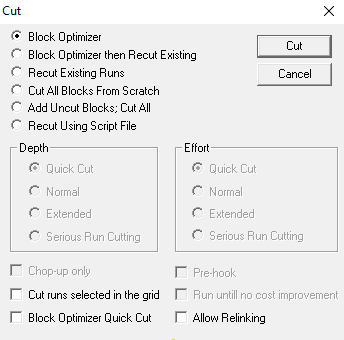 The Depth and Effort options together with the Chop-up only, Pre-hook, and Run until no cost improvement options appear shaded.