Blocking
This document highlights the new features and changes in the Blocking screen. Items with a * were introduced (partly or in whole) in a maintenance release build of v18.
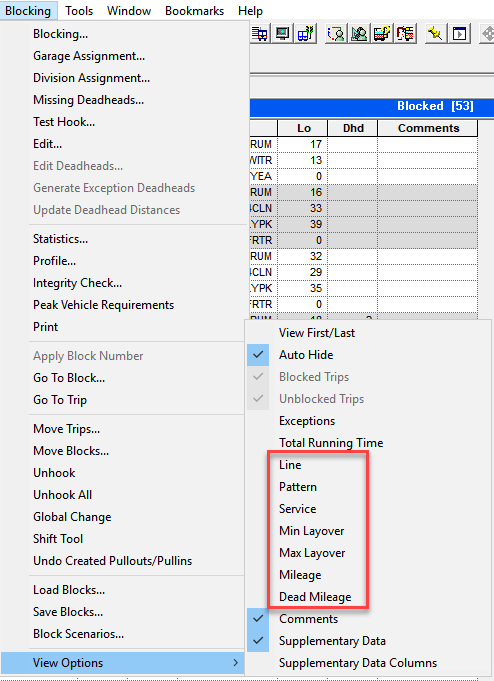
- To allow users to show or hide fields in the Blocking screen,
additional options have been added to the View Options list: Line,
Pattern, Service, Min Layover, Max Layover, Mileage, Dead Mileage. (The option,
Dead Mileage is only visible for users who have activated the
Use Calculated Deadheads property. It applies to non-implied
deadheads.)
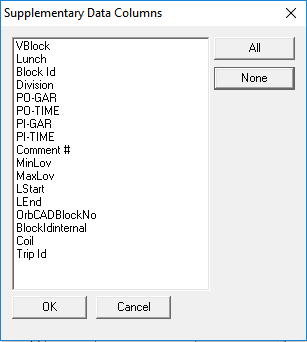
- Users can now choose which supplementary data fields are shown in the Supplementary data
grid in the Blocking screen. A new option, Supplementary Data Columns
has been added to the View Option in the
Blocking menu. If clicked, the Supplementary Data
Columns dialog opens. A list of the supplementary data fields are shown. To
display all fields in the Supplementary data grid, click All or to
display a few, choose them from the list. To remove all the fields from the Blocking tab,
click None.
- The appearance of the colors of exception trips in the Blocking screen have been changed
from bright to pastel similar to how they appear in the Trip Building screen:
- School Exception - Green
- No School Exception - Yellow
- Day Exception - Blue
The background color for the supplementary data fields of trips with exceptions has also been removed.
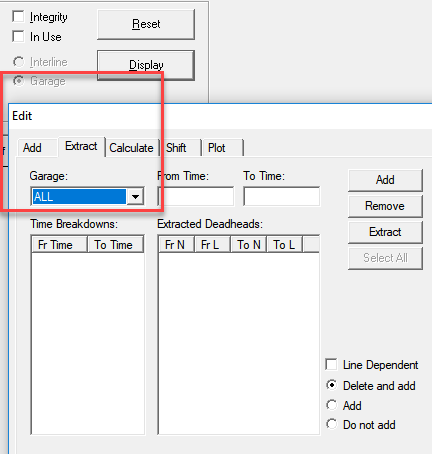
- When users choose to view Garage deadheads, the first field on the top left of the
Extract tab of the Deadheads Edit dialog
box, is now labeled Garages since it shows the list of garages. If
the Interline option is chosen on the Deadheads tab, the field is
labeled Line Group and the list of line groups is shown.*
- On the Deadheads tab, the following changes have been made for
the display of trip comments on reports:
- Two new column options have been added to the Blocking
menu:
- Routing - Shows the comments of trips.
- Blocks - Shows the Blocks with which the deadheads are
associated.
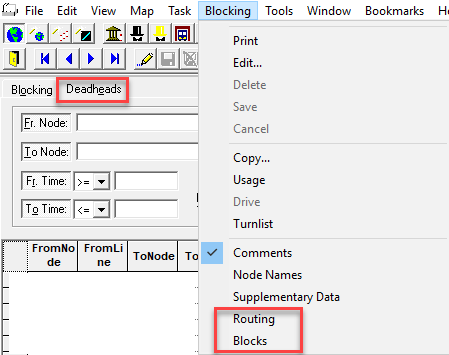
- If the Routing column is displayed, the Column dialog is not displayed when the Comments fields are clicked.
- For multiple comments, the first comment is shown on the first line together with the information of the deadhead. The other comments are shown on separate lines in the Comments column.
- The lines of deadheads with multiple comments are shown with a gray background.*
- Two new column options have been added to the Blocking
menu:
- The Divisions and Vehicle Types fields have been added in the Peak Vehicle Requirements dialog. When users open the dialog, the option, (All) appears in both fields by default.*
- The following features have been added for the use of Google Maps on the
Deadheads tab in the Blocking screen:
- The origin and destination stops can now be seen on the map.
- Deadhead traces can be shared among sign-up periods and copied when edited.*
- On the
Renumber tab of the Edit dialog, the
following options have been added:
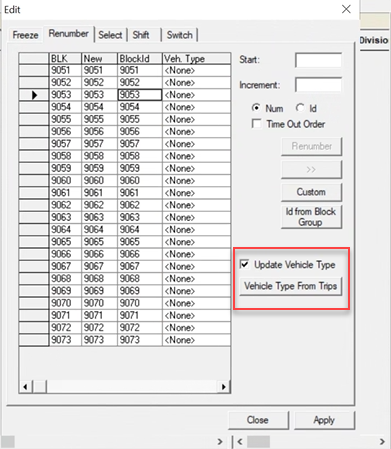
- Update Vehicle Type checkbox - If selected, the Veh Type column and the Vehicle Type From Trips button are enabled. If not selected, the Vehicle Type From Trips button is not enabled and the vehicle types are not updated when users click Apply. The Veh Type column also becomes read-only.
- Vehicle Type From Trips button - If enabled and clicked, the
Vehicle Type column is updated showing the same vehicle type
for all trips if all the trips on the block have the same vehicle type applied to the
trips.*