
Batch Geocoding Addresses

The Batch Geocoder is a tool that allows you to geocode groups of addresses previously typed into the system at one time.

The Trapeze4 Workstation must be open.
To use this feature, users must belong to a user group that has been granted permission to batch geocode. To review the actions accessible to a user group, check the Batch Geocoder security permissions in the Trapeze6 Client Shell. (This feature is used mainly in Trapeze PASS.)
  1. Click the Batch Geocoder button:

    Gray shape on another gray shape.
    The Street Wizard/Batch Geocode dialog box appears.
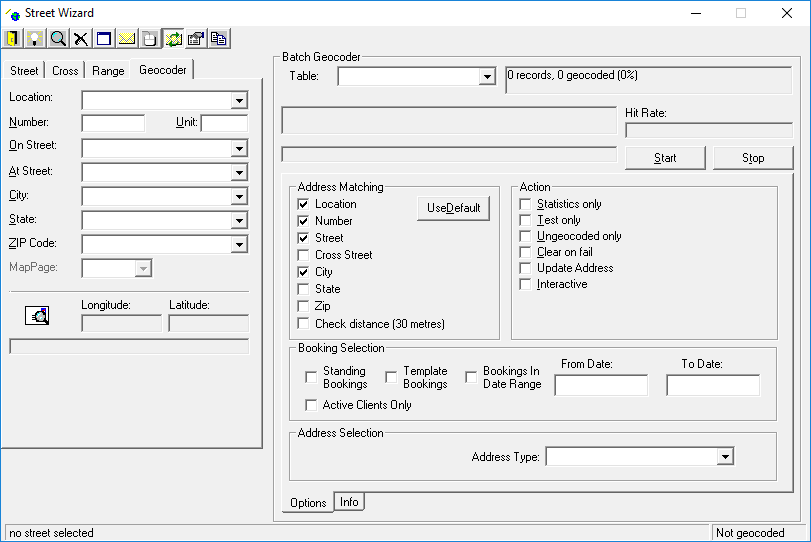
    The Street Wizard dialog box is open to the Geocoder tab and the Batch Geocoder frame is visible on the right side of the box.
  2. In the Batch Geocoder frame, click a Table in the list.
    For example, if you click Locations, the gray field on the right displays the number of common locations in the system as well as the number of locations that are geocoded.
  3. Optional: In the Address Matching frame, select the options to use when searching for addresses.
    • Location
      Search for addresses by location.
    • Number
      Search for addresses by street number.
    • Street
      Search for addresses by street name.
    • CrossStreet
      Search for addresses by intersection.
    • City
      Search for addresses by city.
    • State
      Search for addresses by state.
    • ZIP
      Search for addresses by ZIP code.
    • Check Distance

      The Check distance check box with the defined distance (30 meters) visible to the right.
      Update address coordinates if a new solution exceeds the defined distance (for example, 30 meters) from the existing coordinates of a geocoded address. This option prevents a good address from becoming a bad address when trying to correct slight shifts in street alignment.

      The value between the parentheses will change depending on the distance defined in Tools > System Properties, on the Profile tab, under Batch Geocoder > Distance Threshold.

    Alternatively, click Use Default. The system automatically uses its default search criteria, as defined in the Address Matching properties.
  4. In the Action frame, select one or more check boxes:
    • Statistics only
      Do not attempt an actual geocode but still scan the selected table and reviews the GeoStatus field to determine how many records are geocoded and by what method.
    • Test only
      Perform a geocode but do not apply results to the table to neither the coordinates nor to the GeoStatus. This option is normally used before the actual geocoding is performed to test the data and, if necessary, to adjust the parameters.
    • Ungeocoded only
      Geocode only records that have not been geocoded. If not selected, the batch geocoder attempts to geocode all records.
    • Clear on fail
      Use this option with extreme caution. Records that cannot be geocoded are left ungeocoded, even if they were geocoded before the process was executed. For example, using this option for the BookingLegs table could produce a number of trips with one or more legs not geocoded. As a result, these trips are not scheduled until the geocode problem is resolved manually. This option is more appropriate for tables such as Locations, where ungeocoded records can be dealt with each time they are encountered.
    • Update Address
      Replace original addresses with information selected from the Address Matcher dialog box where applicable. If not selected, the system geocodes addresses while maintaining the original addresses entered in the appropriate address boxes.
    • Interactive
      Displays the Address Matcher dialog box to show the progress of the process. A dialog box appears for each record that fails to match. Use Trapeze4 tools to manually geocode the records.
  5. In the Booking Selection frame, select the booking filters to use:
    • Standing Bookings
      Geocode addresses for standing bookings.
    • Template Bookings
      Geocode addresses for template bookings.
    • Bookings in Date Range
      Geocode addresses for bookings within a date range by specifying the start and end dates in the From Date and To Date fields, respectively.
    • Active Clients Only
      Geocode addresses for bookings for active clients.
  6. Optional: In the Address Selection frame, click the Address Types by which to filter.
  7. Click Start to begin the geocoding process.
    Click Stop at any time to cancel the process.
The system attempts to geocode every record.
At any point during a batch geocoding process, you can click the Info tab to review detailed information about the current geocode attempts.
The status of a geocode attempt is shown below. The Info tab shows the number of records that were successfully geocoded (for example, 771 of 773), the method by which records were geocoded (for example, Unknown, Matched, Mouse) and the detail by which a geocode failed or succeeded (for example, By Range).
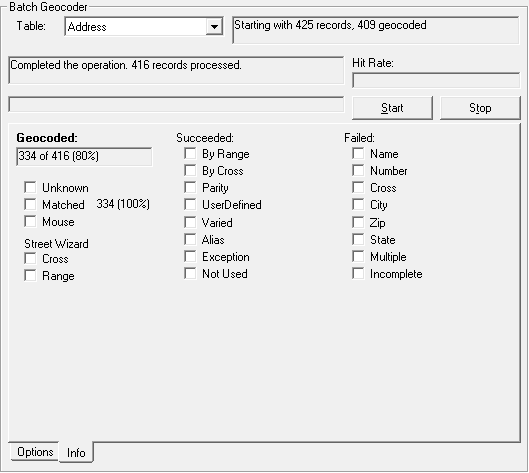
The Batch Geocoder frame after a batch job of 425 records has been processed.
Note the following status codes on the Info tab:
Exception
Indicates that the features are not implemented.
Not Used
Indicates that the features are not implemented.
Multiple
More than one solution matches all required elements. No unique solution is found.
Incomplete
Results were found matching some required elements but none of them matched all required elements. For example, one record matched number, street, and city but not postal code, whereas another matched number, street, and postal code but not city.
