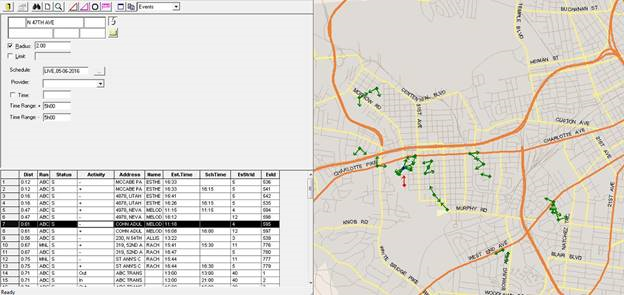
You can search for scheduled events within close proximity of a specified
address.
The appropriate sign-up period should be selected and the Find
Closest Wizard must be open.
- Geocode a point near which to perform the search.
Geocoded addresses typically appear in black text. Addresses that require geocoding appear in red.
To copy a geocoded point in an active window into the
Find Closest Wizard
dialog box, click the
Retrieve Address button:

If the map is open, a yellow dot appears to confirm that the search point has been geocoded.
-
In the Find Closest Wizard toolbar, in the drop-down list, click
Events.
-
Select Radius and type the distance to search around the
geocoded point.
- Optional:
Select Limit and type the maximum number of results to
show.
The default maximum is 200 search results. The found events are the ones closest to
your search point.
-
In the Schedule field, click the ellipsis button (…) to use the
Please Select a Schedule dialog box.
-
Click a Schedule Type (Live or Template) and
Schedule (for example, 04-08-2020 or
Thursday) from their lists.
-
In the Provider field, click the providers to search for that have been assigned to the event.
-
Click OK to close the dialog box.
-
Select the Time check box and in the field to the right, type a
time (for example, 14:17).
The system searches for events with estimated times close to this
time.
-
Accept the times set in the Time Ranges fields or overwrite
these fields.
These fields set the search window. The Time Range+ field looks
for events estimated to occur after the specified time by a certain amount of minutes and
the Time Range- field looks for events estimated to occur before
the specified time by a certain amount of minutes.
For example, if the time is 14:17 and you type 60 in each field, the system looks for
events estimated to occur from 13:17 to 15:17. By default, they are each set at 15
minutes.
-
Click the Find button:

The system looks for events estimated to occur within close proximity of the
specified time and geocoded location.
-
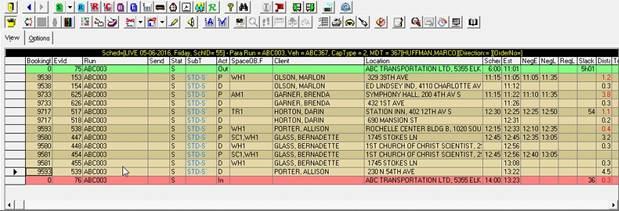
Double-click the event row.
The event opens in Run Itinerary view in Schedule Editor
If you are searching for provider events and the system map is open, green arrows are
displayed on the map that indicate the direction in which the provider vehicles are heading.
Clicking an arrow on the map turns the arrow red and highlights the selected search result in
the grid.