
Copying Databases
You can copy a database using FX Clone.
-
Click .
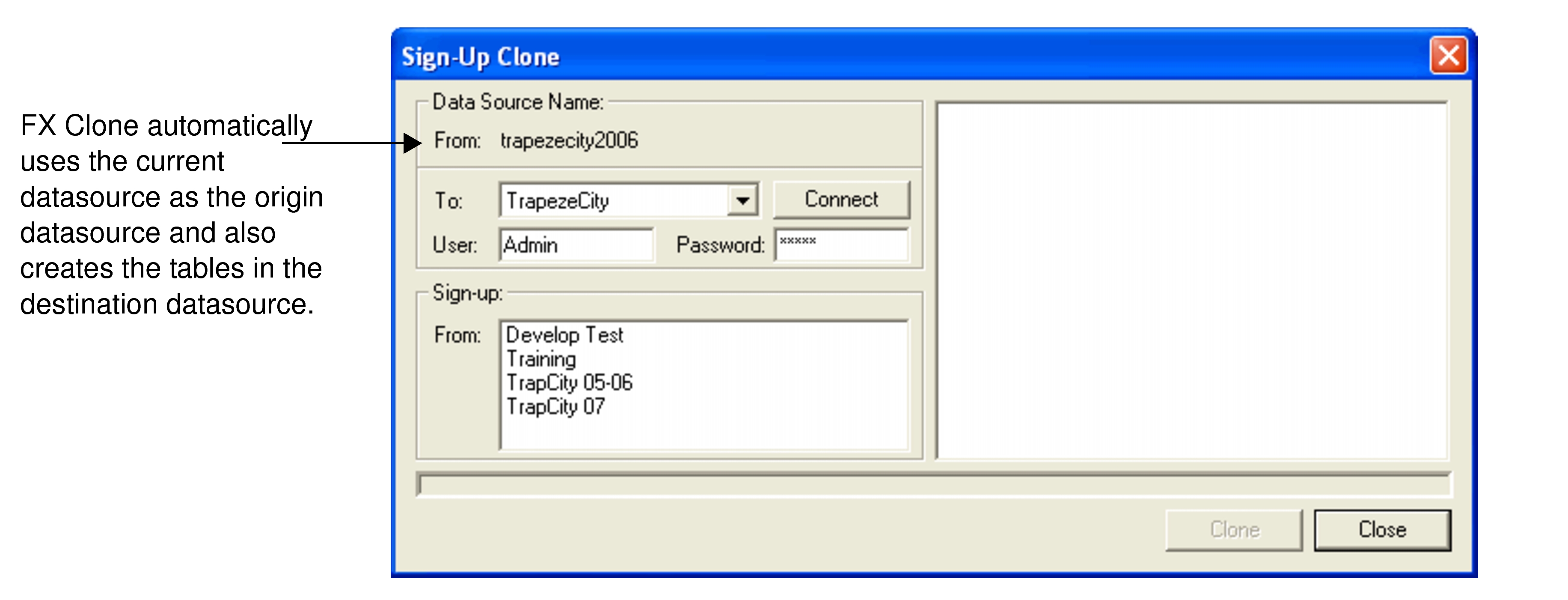
The Sign-Up Clone dialog appears.
 Note: FX Copy enables the system to automatically copy active scenarios (used in BlockBuster).
 - From the To list, select the destination database to which the data will be cloned.
- Optional:
In the User field, type a user name.
In the Password field, type the appropriate password if you are using Oracle or SQL authentication.
- Click Connect. The sign-up periods associated with the selected DSN are displayed in the From field in the Sign-up frame.
- Select one or more sign-up periods you want to copy.
-
Click Clone.
The system initially checks the structure of the databases. A message appears that advises you of the number of tables found in the destination database and asks you to confirm that you want to overwrite them. The tables in the new database are blank and can be overwritten.
-
Click Yes.
The system proceeds with the cloning process. After it is completed, a list of the items copied appears on the right frame of the Sign-Up Clone dialog.
If there are error messages on the list, that is data errors, you must correct them and repeat the cloning procedure.
The last message on the list indicates the completion of the process and the number of tables copied.
- Click Close.
- Connect to the destination database in FX and check the different FX functions. If all are working successfully, you can proceed to change the shortcut and new data source name for all users. You can choose to delete, archive, or place the original database off line.