
Setting Exception Combinations on the Calendar
Use this method if you have not yet created any exception combination.
-
Press F3.
The Set Mode dialog appears. Make sure that you have the appropriate sign-up period.
-
Click .
The Exceptions dialog appears.
-
On the Exception Combinations tab, click
Calendar.
The Exceptions Calendar dialog appears.
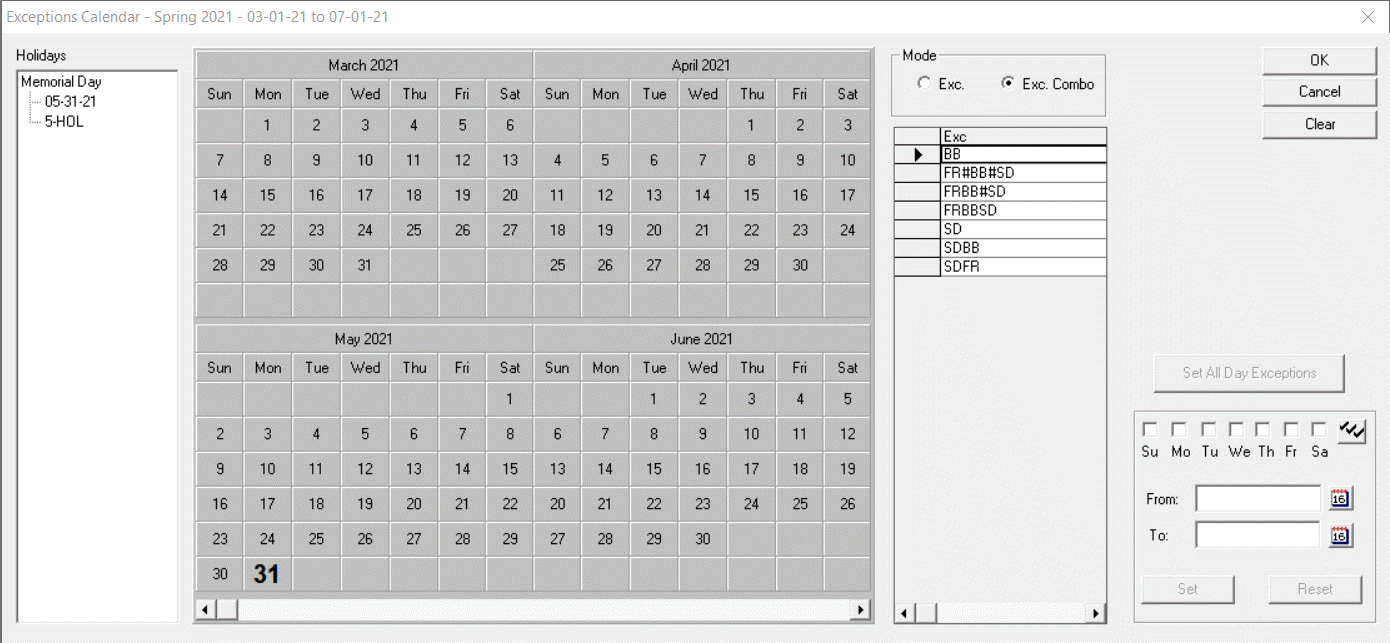
Days that are set as holidays are shown in bold type in the calendar.
-
In the Mode frame, click Exc.
In the Exc column, the list of exceptions appears.
-
From the Exc column, select an exception.
- If you select a regular or exclusive exception and want the exception to apply during the whole sign-up period, select the appropriate checkboxes of the days of the week.
- If you select a day exception, the checkboxes of the appropriate days are selected.
The days you selected changes color in the calendar. - Optional: To set all calendar days with the appropriate day exception for the sign-up period, click Set All Day Exceptions.
- To apply the exception only on specific days, for example, only on the third Friday of the month instead of every Friday, click the appropriate days on the calendar as necessary.
- To mark all exceptions to ensure that the proper exception combinations are created, repeat steps 5 and 7.
-
Click OK.
The system looks at the exceptions chosen for each day of the sign-up and creates exception combinations from them. The Add dialog appears.
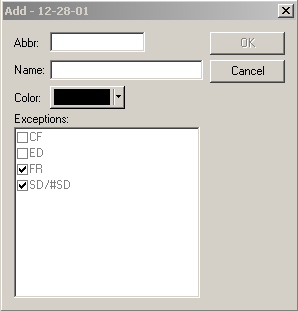
- In the Add dialog, enter the Abbr and Name fields for the new exception combination.
- From the Color palette, select a color for the new exception combination.
-
Click OK.
The exception combination is added to the Exception Combinations tab.
- Optional:
Complete the next Add dialog.
As many Add dialoges are open as there are exception combinations created from your selections.
- Click Close.