
Importing User Groups
You can import and reuse the permission settings you have created for an existing user group.
- Do one of the following:
- Click .
Depending on your system setup, Security may be found in a different location.
- Click the Security shortcut:

The Security screen appears. - Click .
- Navigate to .User group names appear in the left pane.
-
In the User Groups folder list, right-click and click Import User
Groups.
The Open dialog appears.
-
Navigate to and select the previously exported user groups file.
The file is a .xml file.
-
Click Open.
The Select User Groups dialog appears.
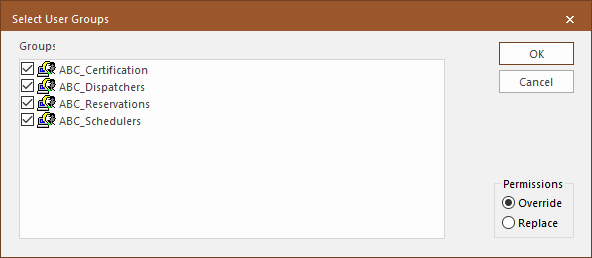
- Select the checkboxes of the groups to import.
- In the Permissions frame, do one of the following:
- Select Override to merge the existing permissions with the imported permissions.
The imported permissions will take precedence when items overlap.
- Select Replace to delete the existing permissions and then load the new permissions.
- Select Override to merge the existing permissions with the imported permissions.
- Click OK.