Place text in quotation marks for exact match search results.
About the MapEdit Screen
When you start MapEdit, the map from the specified data source
appears in the MapEdit screen.
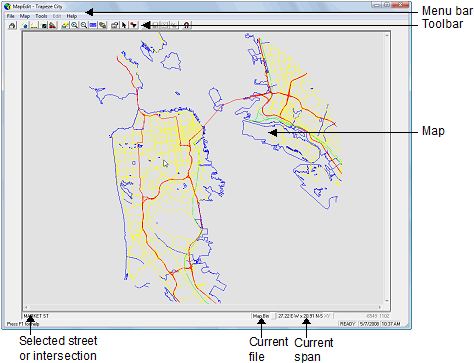
As shown in the following image, the MapEdit screen includes several
components:
Menu bar and tool bar
Access MapEdit functionality using commands from the menu bar and
toolbar at the top of the MapEdit window.
Map
The system map in the MapEdit screen can be viewed and
edited.
Selected street or intersection
When a location on the street network is clicked, the name of the nearest street or
intersection appears at the bottom left of the screen.
Current file - The name of the current file appears at the bottom
of the screen.
Current span - At the bottom right of the screen, the system displays
the distance currently shown on the map. For example, if distances are measured in miles,
27.22 E-W X 20.91 N-S indicates that map shows an area that is 27.22 miles from East to West
and 20.91 miles from North to South.
If the map is not visible in the screen, check to see if the span values are too small; the
map may be zoomed in too close. The distance unit of measure is specified in the
Properties dialog box. If the current span does not appear, it may be
turned off in the system.
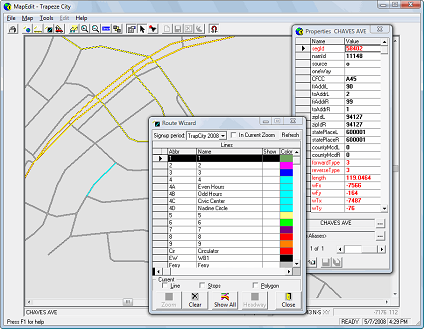
As shown in the following image, MapEdit tools and wizards appear in
dialog boxes when they are accessed using menu or toolbar commands. The windows can be moved
around in the workstation screen and remain open until they are closed.