Place text in quotation marks for exact match search results.
Selecting Criteria for Point Check Data
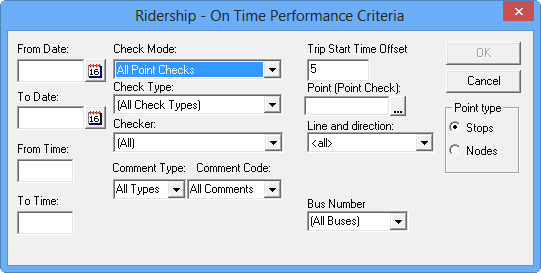
You can select the criteria for point check data using the Ridership - On
Time Performance Criteria dialog box.
Do one of the following steps:
Click Ridership > Criteria.
Click the Criteria button.
The Ridership-On Time Performance Criteria dialog box
appears.
From the Check Mode drop-down list, select the type of point
check you want: All Point Checks, Handheld Point
Checks, or Survey Sheet Point Checks.
The fields applicable to the ride check mode are replaced with new
fields.
Type the necessary criteria.
To view information for a specific point, do either one of the following steps:
Type the first character (letter or number) of the time point abbreviation. A list
of time points appears with all the time points that start with that character. Choose
the appropriate time point from the list.
Type a forward slash (/) to display all time points (nodes). From this list,
select the appropriate time point.
Tip: If the list is long, enter the first character (letter or number) of the
time point abbreviation. This highlights the next time point that starts with that
character. Continue to enter that character until you reach the time point that you
want.
Perform any of the following steps:
In the Point type frame, choose the type you want:
Stops or Nodes.
In the Line and direction drop-down list, choose a specific
line and direction or choose <all>.
To isolate trips scheduled to arrive at the selected point on/between specific
times, type time values in the From Time and To
Time fields.
If these fields are left blank, all trips and check data recorded over a 24-hour
period are displayed.
Click OK.
The Trips tab displays the point check data that meets the
criteria that you defined.