You can perform a PASS Booking Analysis using the Booking
Selection dialog box.
Ensure you have the appropriate booking information for the
selected geographical area.
-
Do one of the following steps:
- Click .
- Click the PASS Booking Analysis button:
 .
.
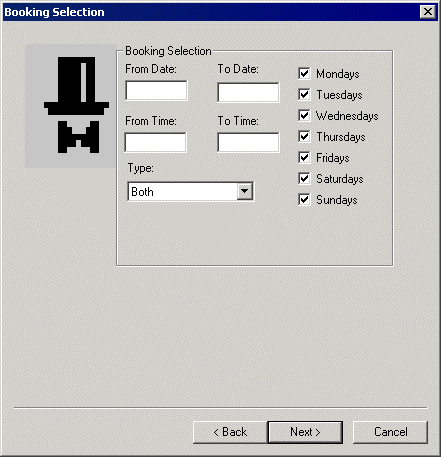
The
Booking Selection dialog box appears.
-
Define a date range in the From Date and To
Date fields.
-
Set a time range in the From Time and To
Time fields.
-
In the Type drop-down list, select one of the following booking
types in the analysis:
- Casual/Demand
- Subscription/Regular
- Both
-
On the list of days of the week, select the days that you want to analyze.
-
Click Next.
The Booking Selection dialog box changes to the
Spatial Test dialog box, which lists the buffers or geographic
areas that you previously defined.
-
In the Origin frame, select one of the
following options:
-
In the grid, select the check box beside the name of the buffer you want. The more
buffers you select, the larger your results will be.
-
To indicate the records you want included, select one of the following options:
-
In the Destination frame, select Inside or
Outside. (These options are similar to those in the
Origin frame in step 7.)
-
In the grid, select the check box beside the trip destination you want for analysis.
-
Click Next.
The Spatial Test dialog box changes into the
Finish dialog box.
-
Click Finish.