Viewing Results on Map
You can view the trips that fit your criteria from the system map.
-
To view trips from the analysis on the system map, do one of the following steps:
- Click View Map.
- Click the System Map button:

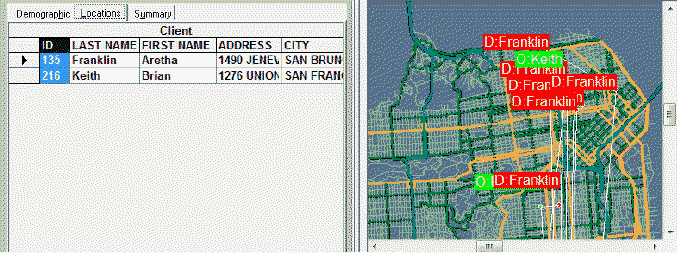
The map generates a display of all of the trips that fit your criteria. By default, the origin points are displayed as green dots, and the destination points are displayed as red dots. You can change the appearance of the origin and destination points. -
To view the Origin/Destination (O/D) of a client’s trip on the map, on the
Locations tab, click a column header of the client’s record.
The Origin and Destination points of the clients' trips are highlighted on the map.The following graphic shows green labels showing the points of origin of the clients' trips (for example, O:Keith for client with the last name Keith) and red labels for their destination points (for example, D:Franklin).