Dispatch New Features
Dispatch enhancements have been added between v21.3 and v21.10.
Daily Activity
- Extra work records can now be deleted using a selected cell (not only the entire record).
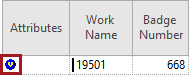
- Work Assignment Rule violations originating from the Suggest
Employee dialog and the Work Assignment Assistant are
now marked with an Assignment Violation symbol in the
Attributes column.
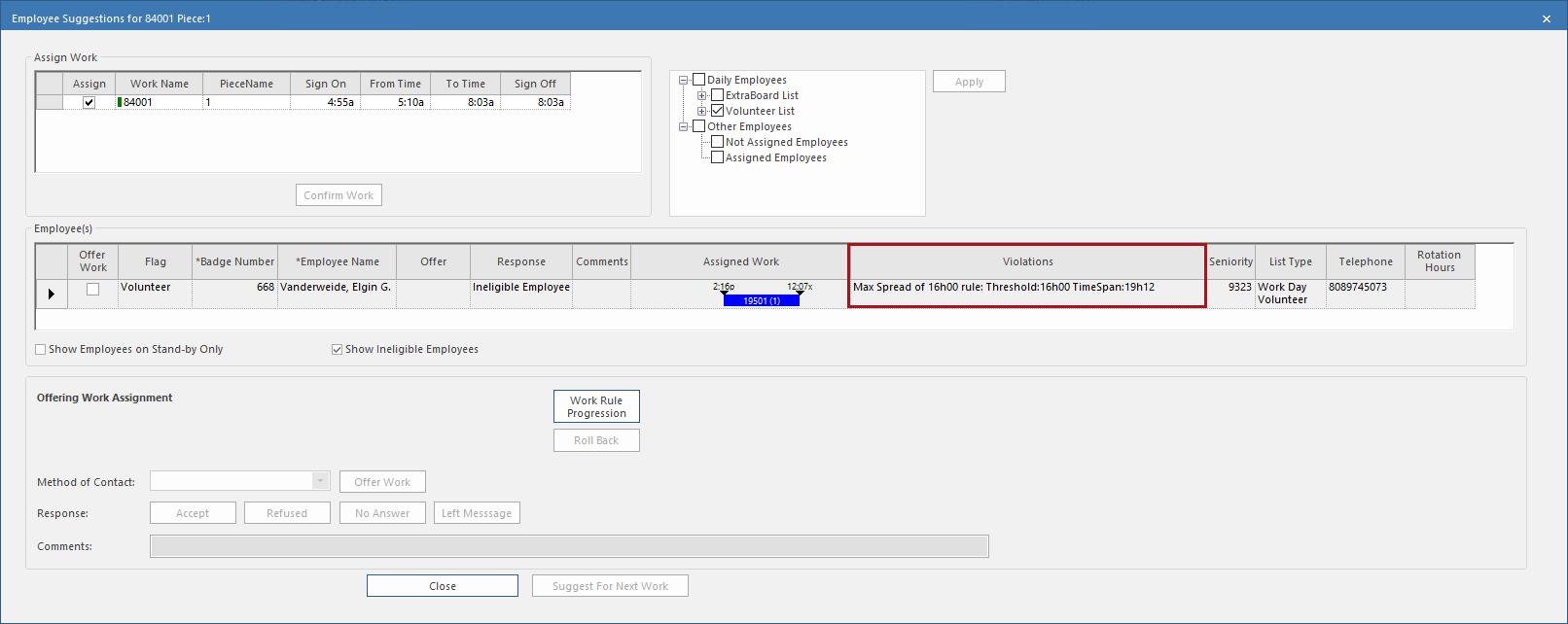
- The Suggest Employee dialog now matches the
Violation screen and Manual Assignment, and in
the Violations field shows the first violation based on the
Rule Name sorted in ascending order.
-
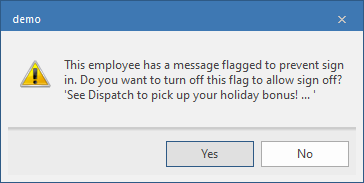
The flag used on employee messages to prevent employee sign-in can now be cleared when employees are manually signed in.
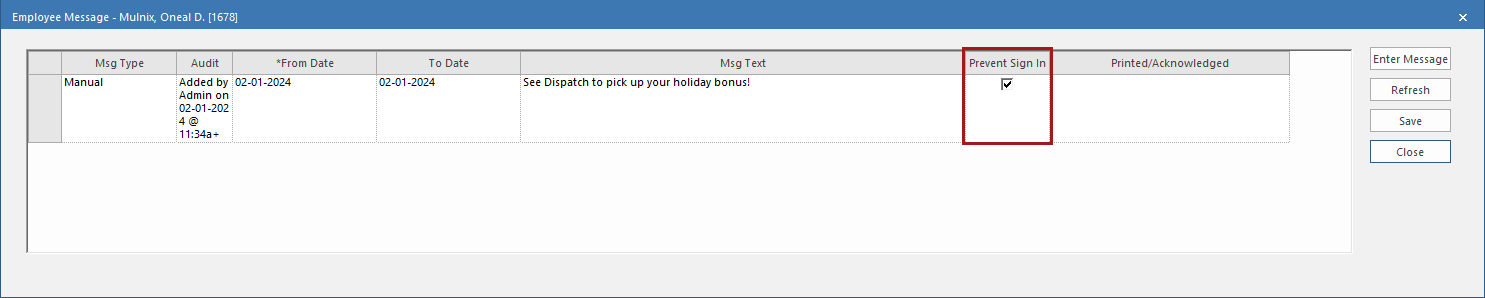
This behavior is determined by the property.If an employee message is preventing sign-in, and Sign-On Activities is used to sign in the employee, then a message appears asking the user if they want to turn off the flag to allow sign off.
If the sign-in is undone (using Undo-Sign-On in Sign-On Activities), then a message appears letting the user know the Prevent Sign-In flag will be restored.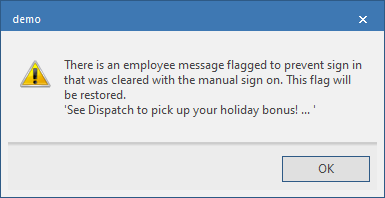
Work Assignment Assistant
- In the Work Assignment Assistant, in the Assigned and
Suggested Work area, Comments can now be added.
Click Next to save the comment. If the work was previously
assigned, the Comments field is read-only (even if the field is
empty).
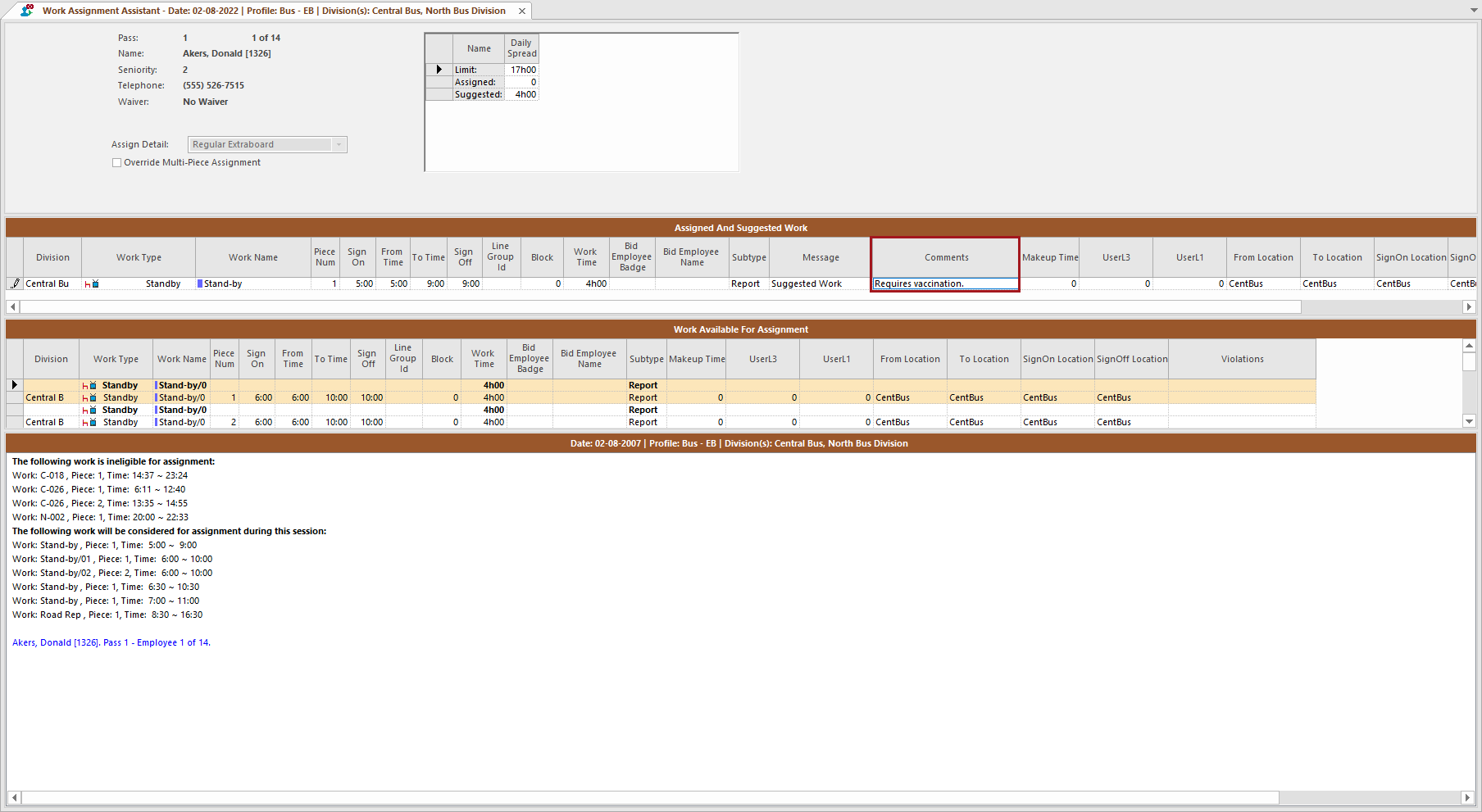
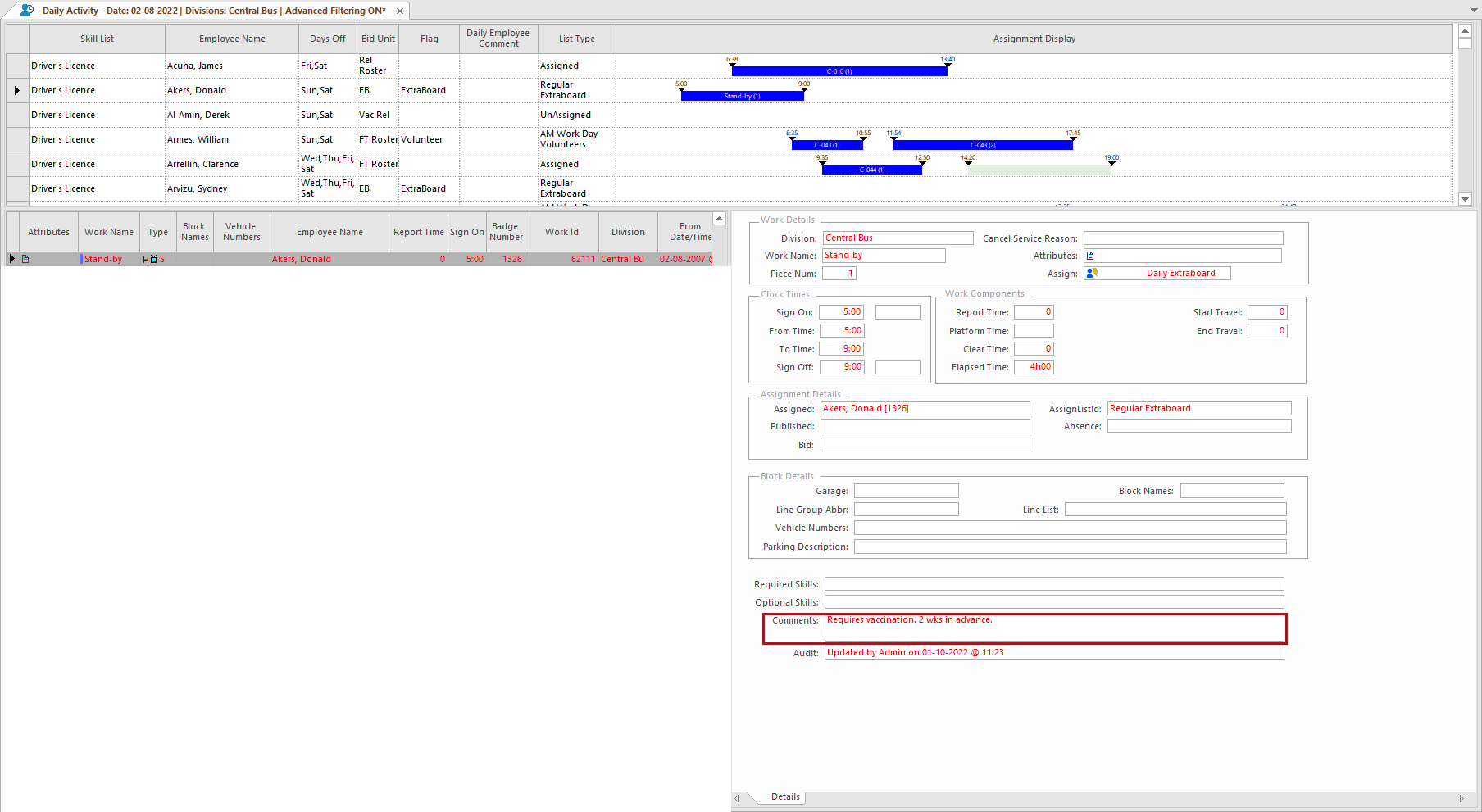
Comments are visible in the Daily Activity screen, in the Work area, under Comments. (Comments can be edited in this field.)