
Workforce Management New Features
Workforce management enhancements have been added between v21.3 and v21.10.
-
In the Rule Progression dialog, custom rules are now always visible, even if there are no warnings or violations.
- In the Employee Profile - Accrual Balance screen, the
column heading Taken has been updated to
Transactions to better reflect the column content.

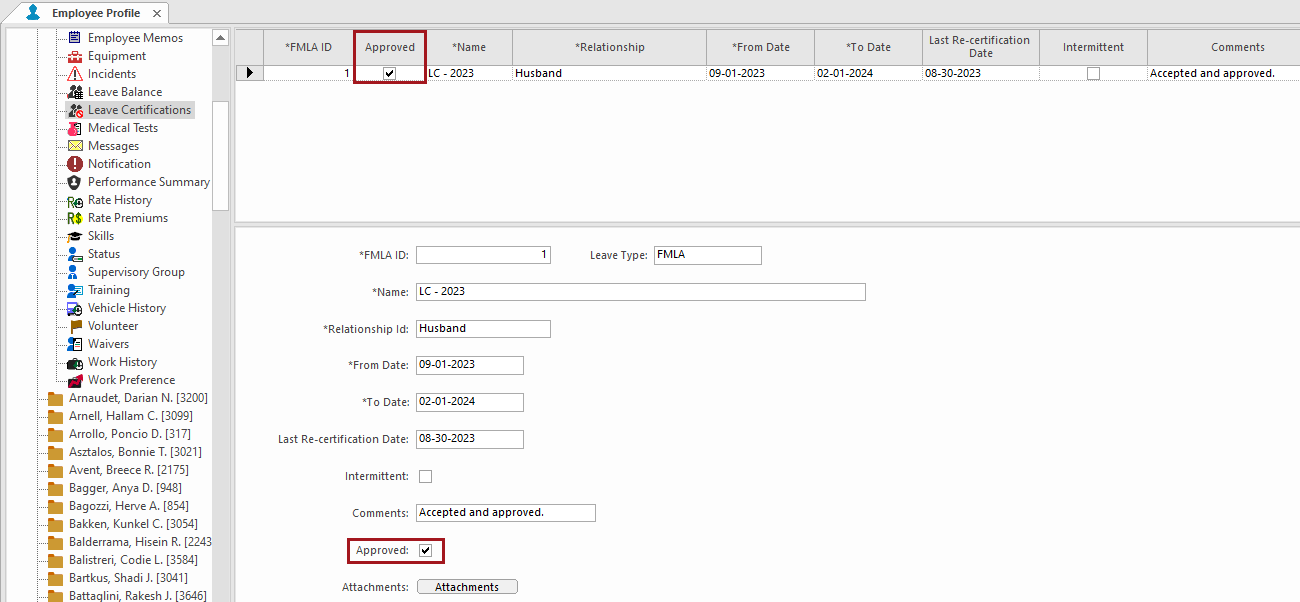
- In the Employee Profile - Leave Certification screen, an
Approved checkbox was added.
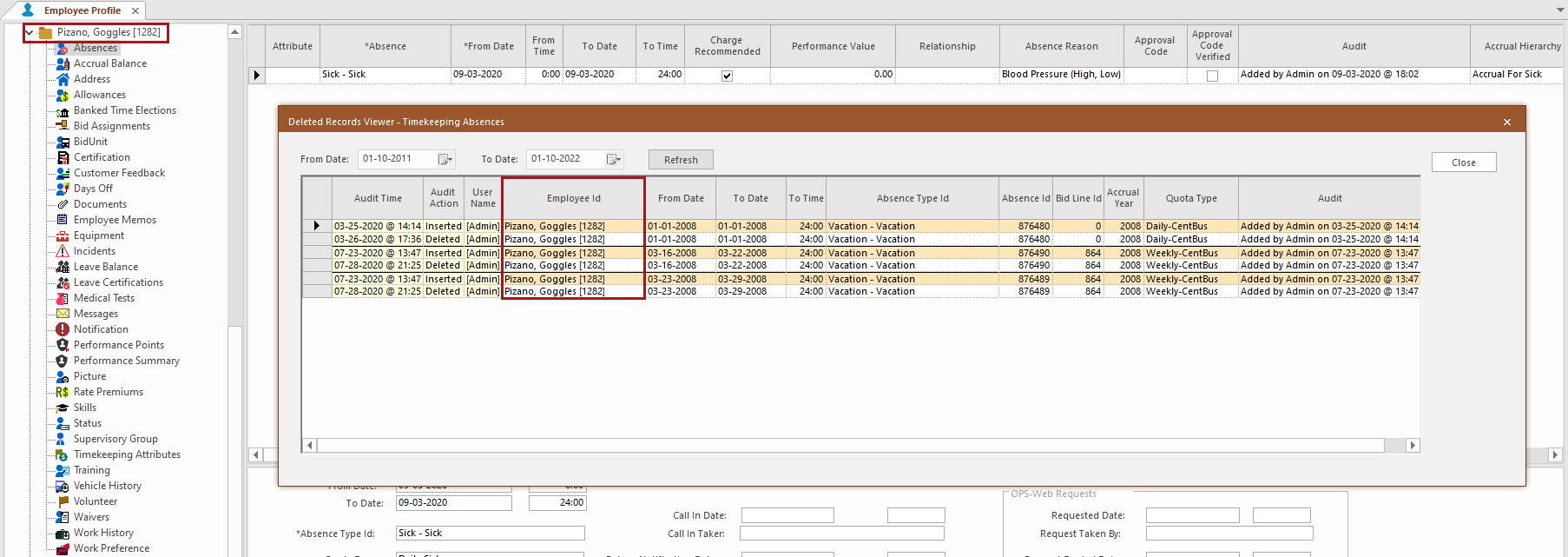
- In the Employee Profile screen, only deleted records
associated with the currently selected employee are shown in the Deleted Records
Viewer (not all deleted records).
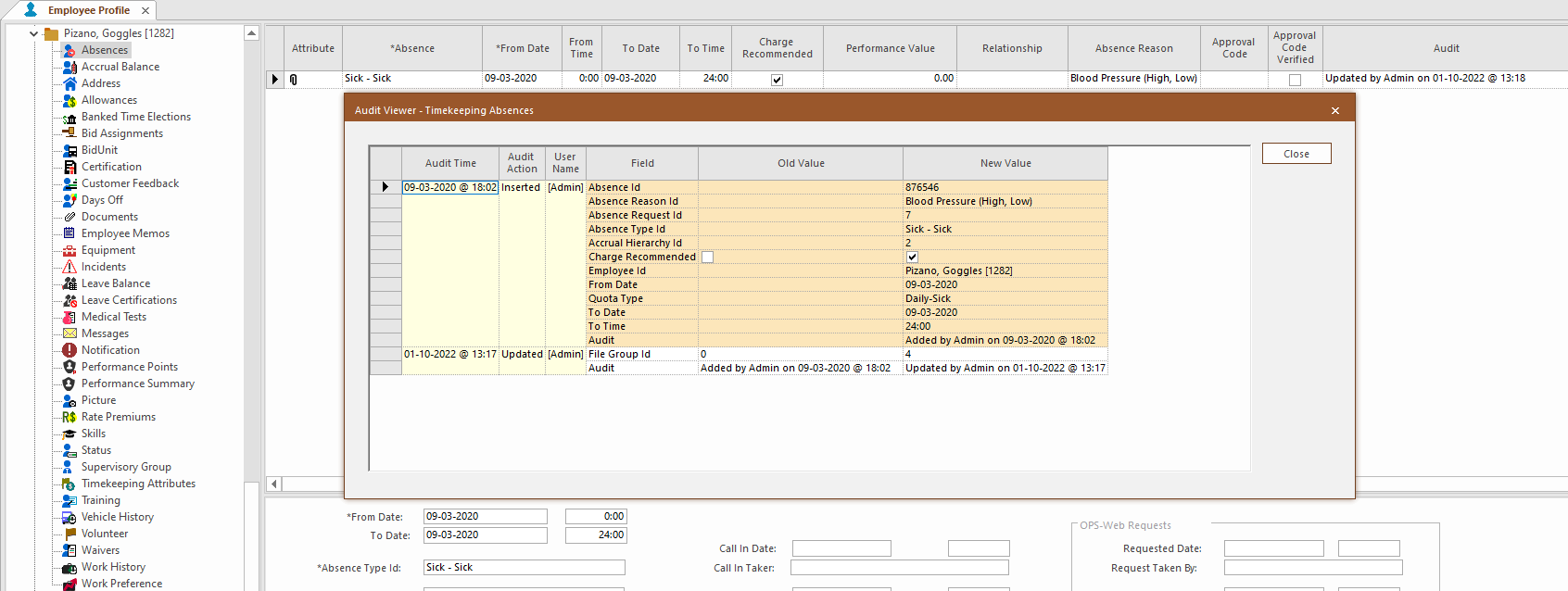
- In the Employee Profile - Absences screen, in
theAudit Viewer, when a specific absence is selected, only the
details for that absence are shown.
- A number of improvements were made to the Performance Points Balance feature:

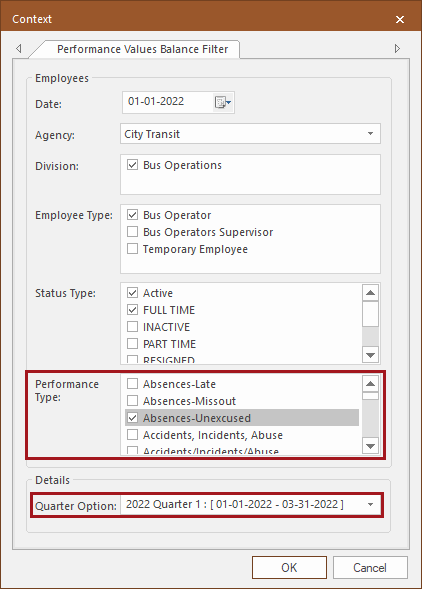
- In the Performance Value Balance screen
Context (F3), Performance Type was
added, Supervisor Group was removed, and the
Quarter Option is now only available if the property is selected. When performance point balances are generated,
they're based on the defined Context. If using quarters, performance values are
updated to 0 for performance types not selected in the Context.
- In the Performance Value Balance screen, a
Performance Type column was added. This shows the performance
type associated with the generated Performance Value.

- In the Performance Value Generation dialog,
Quarter information is now only shown if the property is selected.
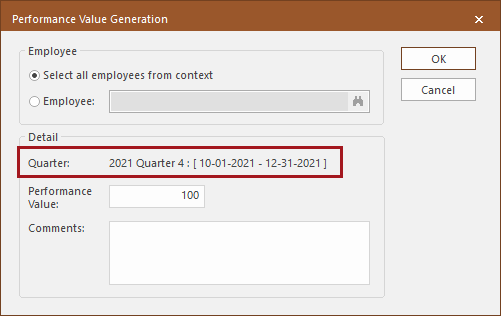
- In the Performance Value Generation dialog, an
Effective Date field was added.
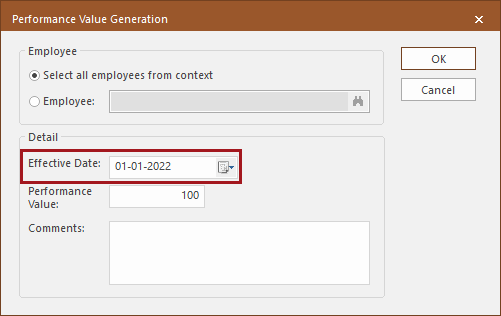
If quarters aren't used, when there is a value (and no custom service), point balances are generated for employees using the defined Effective Date.
- In the Employee Profile - Performance Points
screen, a Performance Type column was added. It shows the
performance type associated with the Performance Value.
Points are now deducted by performance type and performance balances are always
shown for all existing performance types. .
 If using quarters, a Quarter column is shown.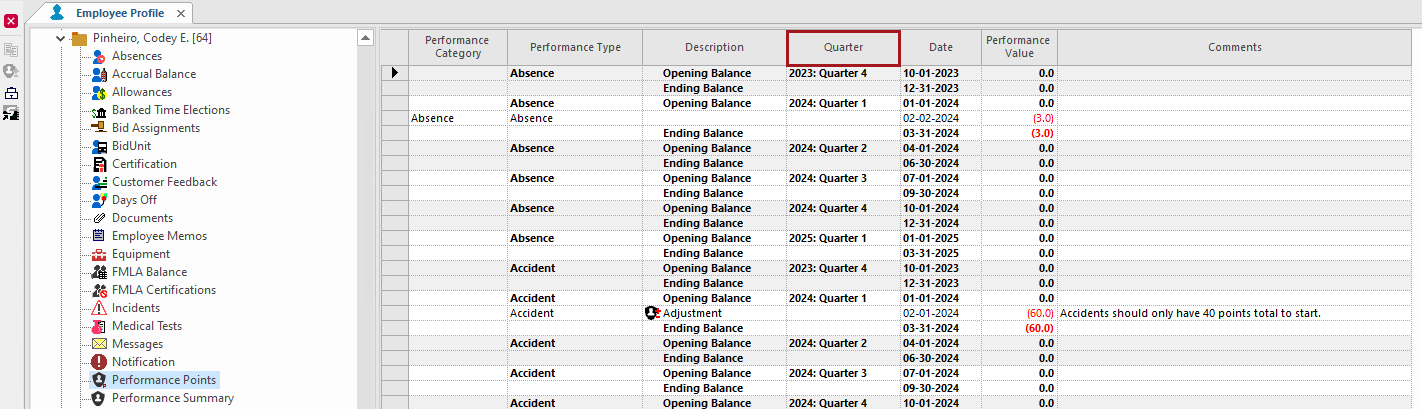
Properties can be set to define automatic points generation at night, or the OPS Job Management screen can be used to configure automatic points generation.
Points balance generation details are available in the OPS Process Log under OPS Process: Performance Generation.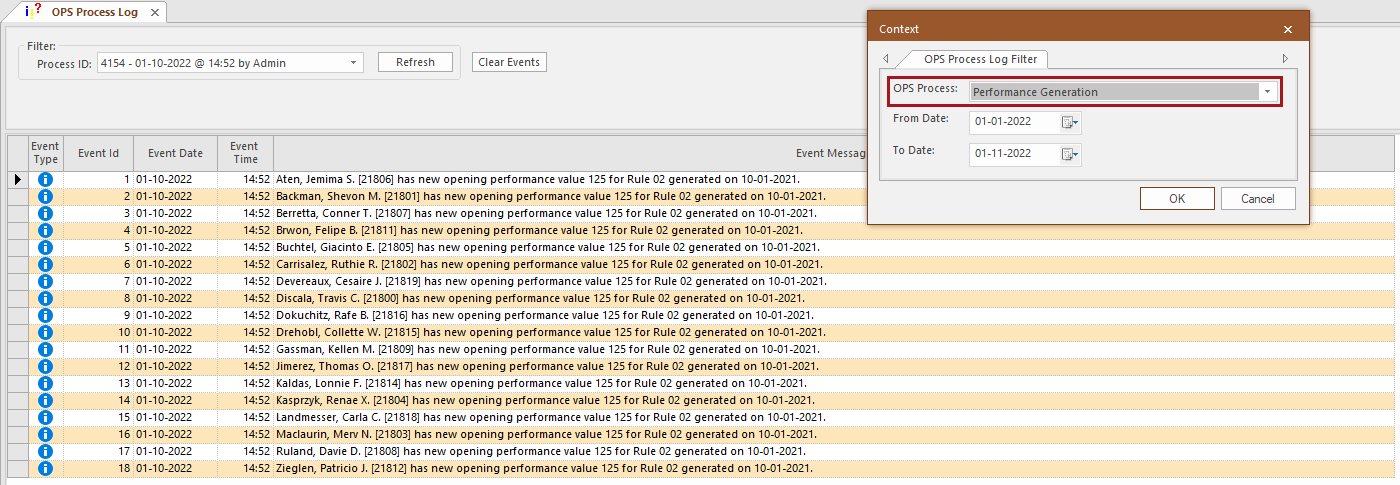
- In the Employee Profile - Performance Points
screen, a new button, Performance Adjustments, was added:
 This launches the Performance Point Adjustment dialog
which allows users to modify the available performance points for the selected record.
This launches the Performance Point Adjustment dialog
which allows users to modify the available performance points for the selected record.
To define a new performance point value, select the employee and then Performance Points. Select the Opening Balance record for the performance type to be updated and then select the Performance Adjustments button. Select the Date for the adjustment, define the Performance Value, add any Comments, and select OK to exit. If using quarters, the adjustment date must be within the quarter date range.
The Adjustment appears on the screen and a new Ending Balance is visible.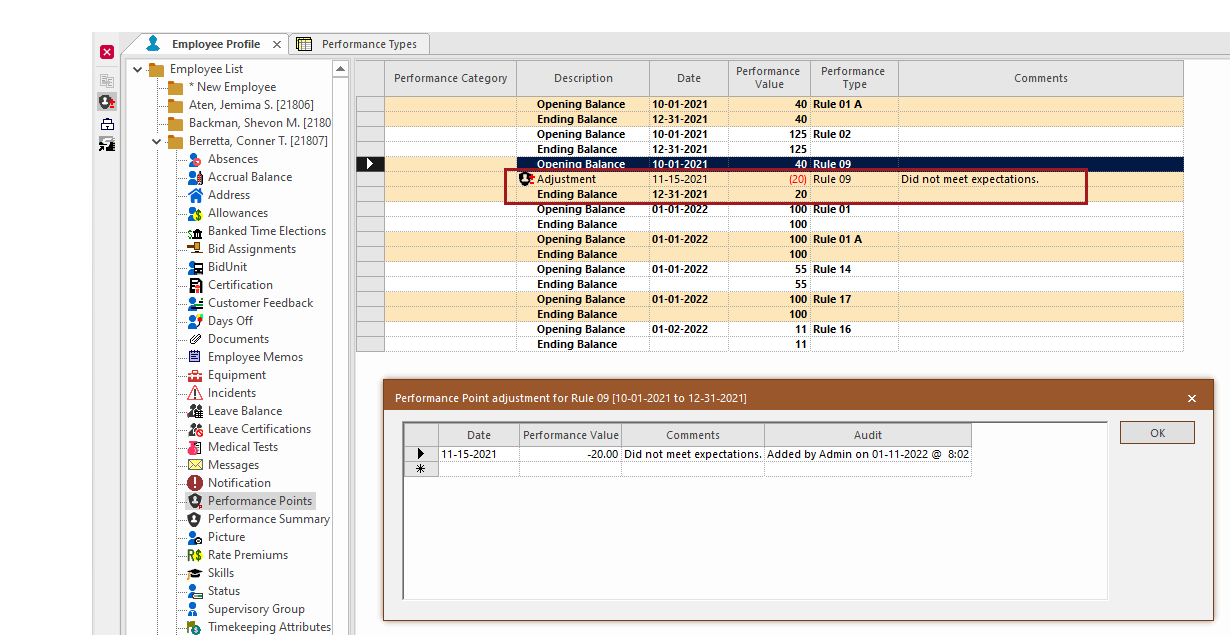
Manually added adjustments can also be edited using the Performance Points Adjustments dialog.
- In the Performance Value Balance screen
Context (F3), Performance Type was
added, Supervisor Group was removed, and the
Quarter Option is now only available if the property is selected. When performance point balances are generated,
they're based on the defined Context. If using quarters, performance values are
updated to 0 for performance types not selected in the Context.