
Running the Service Shell as a Windows Service
You can install the Service shell as a Windows service that runs automatically when you start the computer.
-
In the path\Bin\vc12\x64\Release folder, where path is the directory where COM is
installed, double-click TpSCM.exe.
The Trapeze Service Control Manager dialog box appears.
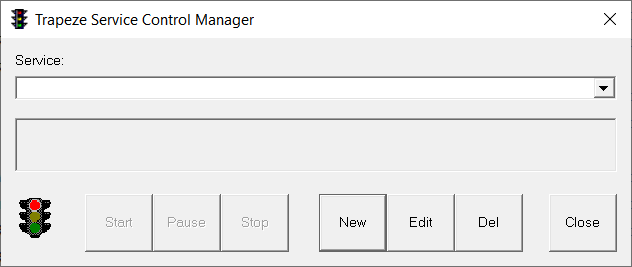
-
Click New.
The Add New Service dialog box appears.
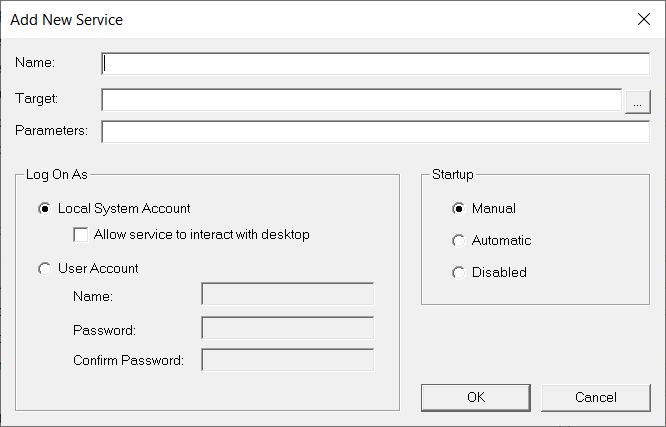
- In the Name field, type a name for the service.
-
Click the ellipsis (...) button beside the Target field.
The Open dialog box appears.
-
Navigate to the path\Bin\vc12\x64\Release folder, where path is the directory where COM
is installed, click SrvShell.exe, and then click
Open.
The SrvShell.exe path and file name appear in the Target field.
- In the Log On As frame, select the Local System Account option.
- In the Startup frame, select the Automatic option.
-
In the Parameters field, type the following command:
-config profileName.profile -id=Serverwhere:profileNameis the name of the profile that you want to use.Serveris the server specified in the profile such as Primary or Secondary. - Click OK.
- In the Trapeze Service Control Manager dialog box, click Start.
- Click Close.