Place text in quotation marks for exact match search results.
Generating COM Standard Reports
COM standard reports typically include the title of the report, date when created, and
page numbers.
Open the Trapeze6 Client Shell. (You may have to run it as an
administrator.) The report contents depend on the parameters that you set in the Enter
Parameters dialog box. If no information appears in the generated reports, this
may mean that you have no or incomplete data.
The following procedure describes the steps
required when generating the reports:
On the main menu, click File > New.
The New dialog box appears.
Click Crystal Report, and then click OK.
A Crystal Report tab appears.
Perform one of the following steps:
Press CTRL + R.
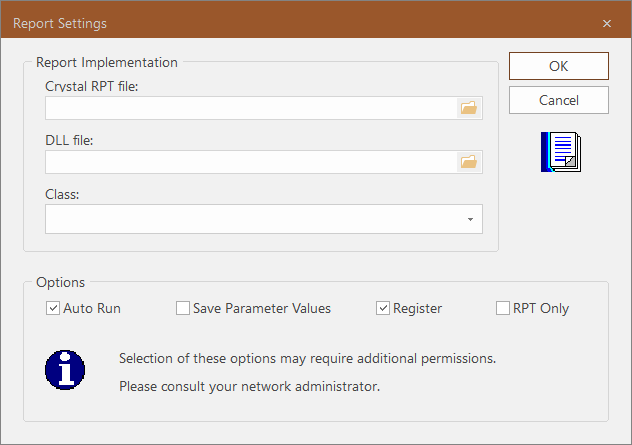
Click the Settings button:
The Report Settings dialog box appears.
In the DLL file field, browse to the COM Standard Reports dll
file in the path\Bin\vc142\x64\Release folder.
In the Class field, click the report you want to generate, and
then click OK.
The Save As dialog box appears.
Save the report file in the same folder as your other reports, and then click
OK.
The Enter Parameters dialog box appears.
Set the parameters to enable the system to determine the data to be included in the
output. Use any of the following methods, as appropriate:
For date fields, click the field and select a date from the calendar.
For fields with a check box, select or clear the check box to enable or disable an
option. If there are several options, you can select more than one. To apply all
parameters, select the check box beside the header of the list.
For blank fields, enter the required value or select an option from the list
provided.
Note: For some fields, if you do not select an option (leave the field blank), the
standard report will also include feedback reports that do not have information in the
relevant field. For example, in the No Action report, if you do
not select a provider in the Provider field although there may be
several options, the standard report will include feedback that do not indicate the
providers involved. If you select one or more providers, the standard report will only
include feedback associated with the selected providers.