Searching For Demand Response Data
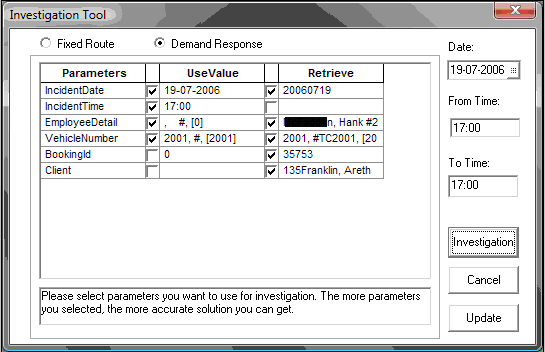
Filters are shown in the Parameters column of the Investigation Tool dialog box and are the data elements that the tool uses when searching for Demand Response data.
-
Click the Investigation Tool button:
 .
.
-
Select the Demand Response option (if not selected by default).
(The set of parameters shown in the Investigation Tool dialog box are
different from those shown for Fixed Route.
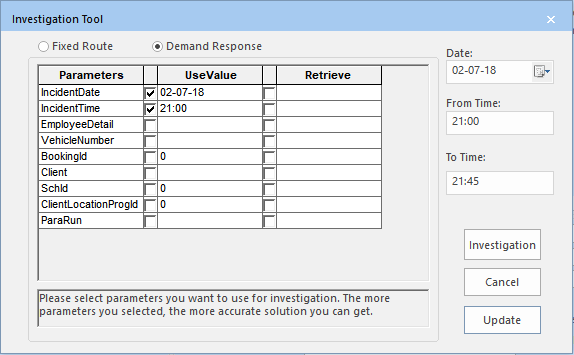 The parameters you previously entered appear in the Use Value column. For example, you wish to find out who the driver was in a reported incident. The tool uses these values when you click the Investigation button. The results of the investigation are shown in the Retrieve column. The following example shows the name of the driver in question.