
Performing Advanced Sorting
You can sort by multiple fields, in opposite directions (ascending and descending).
You perform an advanced sort when you:
- Sort by more than one field.
- Sort in the selected fields in different orders.
For example, in the Subject pane of the COM Investigator screen, you want to sort subjects for a feedback by department name (starting with A, ending with Z). Thus, all subjects for the Operations department are grouped together. Within this group, you also want the subject entries sorted by target date (starting with the oldest date at the top descending to the newest date at the bottom).
-
Click the Sort button:
 .
The Sort dialog appears.
.
The Sort dialog appears.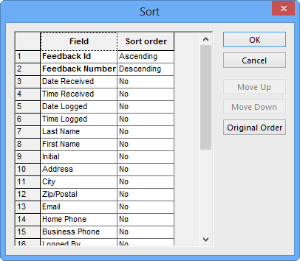
- Choose a field to be the primary sort field, for example, Department and click Move Up until it moves to the top of the list.
- In the Sort order column, click the drop-down list and choose Ascending or Descending. Choose No if you do not want a field included when the sort is performed.
- Move the next sort field into the secondary position on the list and choose a sort order from the drop-down list for this field.
- Optional: Move the other fields and set their respective sort order.
-
Click OK.
The Original Order button sets the sort fields back to No, which is the default. It also reinstates the system sort order set as the default for that particular grid.