
Parameters
When you perform an itinerary search, the results are governed by a set of parameters recorded on the Parameters tab of the Itinerary Planning screen.
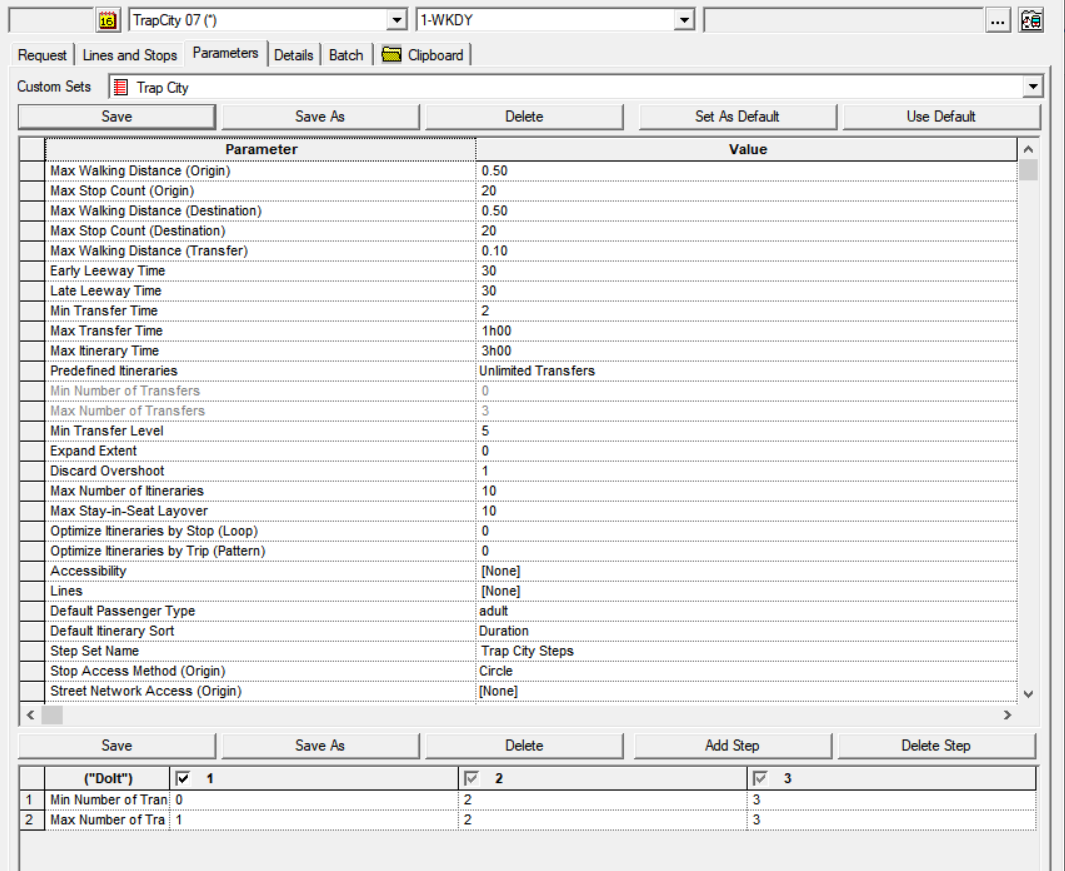
| Parameter | Description |
Default Value |
CTM Engine/CTM Server |
INFO- Engine |
|---|---|---|---|---|
| Maximum Stop Distance (Origin) | Farthest distance that the departure stop is away from the origin. This is used in conjunction with the Stop access method (Origin) parameter. | X | X | |
| Maximum Stop Count (Origin) | Maximum number of stops within the specified stop distance (see Maximum Stop Distance (Origin), closest to the origin point, that will be considered in the algorithm. If there are fewer stops than this number within the specified distance, this parameter is ignored. This parameter effectively reduces the superfluous number of stops that can be found within the realistic walking distance in the areas with numerous closely spaced stops (typically downtown). To turn off this parameter, set it to a very high number - in this case, Max Walking Distance (Origin) will be the limiting factor. | 20 | X | X |
| Stop Access Method (Origin) | The three stop access methods are:
|
X | X | |
| Street Network Access (Origin) | Determines how the walking distance is calculated based on the vehicle class. | |||
| Street Network Access (Destination) | Determines how the walking distance is calculated based on the vehicle class. (Same as Street Network Access (Origin) | |||
| Maximum Stop Distance (Destination) | Farthest distance the departure stop is away from the destination. Used in conjunction with the Stop access method (Destination) parameter. | X | X | |
| Maximum Stop Count (Destination) | Maximum number of stops within the specified walking distance (see Max Walking Distance Destination), closest to the destination point, that will be considered in the algorithm. If there are fewer stops than this number within the specified distance, this parameter is ignored. This parameter effectively reduces the superfluous number of stops that can be found within the realistic walking distance in the areas with numerous closely spaced stops (typically downtown). To turn off this parameter, set it to a very high number - in this case, Max Walking Distance (Destination) will be the limiting factor. | 20 | X | X |
| Stop Access Method (Destination) | The three stop access methods are:
|
X | X | |
| Maximum Stop Distance (Extended) | Maximum distance to look for stops if no stops are found within the Max Stop Distance parameters (Origin or Destination). The stops found using this parameter will use the Circle Stop Access method (point to point). | X | ||
| Maximum Walking Distance (Transfer) | Farthest walking distance allowed to/from a bus stop at transfer locations. | 100 m | X | X |
| Maximum Stop Distance from a Transit Access Path | The perpendicular distance the stop is away from the street segment that the algorithm will use to search for the stop. | X | X | |
| Early Leeway Time | The window or interval before a departure or arrival time in which the system looks for stop times (for example, when conducting itinerary searches within a 30 minute time window, the system searches 30 minutes prior to a specified departure time). | 30 min | X | X |
| Late Leeway Time | The window or interval after a departure or arrival time in which the system looks for stop times (for example, when conducting itinerary searches within a 30 minute time window, the system searches 30 minutes after a specified departure time). | 30 min | X | X |
| Min Transfer Time | Minimum layover (i.e. time between alighting one vehicle and boarding the next one). This can be overridden for specific transfers. This parameter is ignored for no-cost transfers. | 2 minutes | X | X |
| Max Transfer Time | Maximum layover time (i.e. time between alighting one vehicle and boarding the next one). | 1h00 | X | X |
| Max Itinerary Time | Maximum duration of a trip from the time the passenger boards the first vehicle and alights the last vehicle (including layovers). | 3h00 | X | X |
| Predefined Itineraries |
This parameter controls whether the predefined itineraries (also referred to as
saved itineraries and favorite itineraries) are going to be applied in a search. By
default, they will be applied disregarding the Max Number of Transfers parameter.
The three options are:
|
Unlimited Transfers | ||
| Min Number of Transfers | The minimum number of countable transfers for the itinerary that are going to be considered as valid solutions. No cost transfers within the same line are not considered countable, and therefore they are ignored for this purpose. | 0 | X | |
| Max Number of Transfers | The maximum number of countable transfers allowed in a given trip plan. No cost transfers within the same line are not considered countable, and therefore they are ignored for this purpose. | 1 | X | |
| Min Transfer Level | This parameter requires that only transfers of a specified level or better be used in planning itineraries. Type a number from 1 to 10 (where 10 is the category of least preferred transfer). The default value is 10 (use all transfers). You can determine transfer levels per transfer in the Transfer Wizard by editing a transfer or in the Automatic tab. | 10 | X | |
| Expand Extent | The algorithm generates itineraries in two stages:
|
0 | X | |
| Discard Overshoot | This parameter determines whether a transfer can be made within the
Origin/Destination stop set. The four modes for this parameter are:
|
0 | X | |
| Max Number of Itineraries | The maximum layover time the system will allow on board a single vehicle. | 10 | X | X |
| Optimize Itineraries by Trip (Pattern) | By default, the algorithm tries to assign the times for the generated itineraries starting with the closest stop on the particular line/direction. However, on loop routes it can happen that the closest stop that yields results is on the direction that sends the passenger around the loop, rather than one that is a little farther away but would provide much quicker itinerary. Setting this parameter to 1 (that is, on) makes the algorithm generate solutions that may be in the same (scheduled) direction but not necessarily the closest stop. To turn this parameter off, set the value at 0. | 0 | X | |
| Optimize Itineraries by Trip (Pattern) | When this parameter is set to 1 (that is, On), the algorithm generates solutions that may not start with the closest time but rather searches all patterns until the best solution is found. To turn this parameter off, set the value at 0. | 0 | X | |
| Accessibility | This parameter determines the accessibility required for the trip plan. Accessibility types are defined in the FX - Accessibility ancillary data screen. | 0 | X | X |
| Lines | This parameter lets you specify which transit lines should be used or avoided in
the solutions generated for the particular request. When you click the down arrow in
the Value field, the Lines Selection dialog opens. Selecting
a check box next to a line produces the following settings for the algorithm:
|
[None] | X | X |
| Modes of Transportation | Provides the user the ability to include or exclude specific modes of
transportation (for example, exclude “Rail”). Note: You can add the Modes of
Transportation parameter to the Step Sets in CTM Parameters. |
Bus[+], Demand[+],Ferry[+], Flex[+],MOBMGT[+], PROJMAIN[+], Rail[+] |
X | X |
| Personal Mode of Transportation for Entire Trip | Allows you to select the mode of transportation that the client uses for an entire trip. From the Value list, select the appropriate mode of transportation. | [None] | ||
| Default Passenger Type | Determines which predefined passenger type is the default value on the request tab. This passenger type fare is the one shown in the Fare column of the Details tab. Passenger types are defined in Faring/Fare Types ancillary data. | [None] | X | X |
| Default Itinerary Sort | Determines which sort order is the default for the parameter set. This parameter works in conjunction with the sort icons (By Time, By Walking Distance, By Number of Transfers, and By Lowest Fare). That is, when you select the corresponding icon in the toolbar, this parameter value changes and vice versa; when you select another sort order in the Parameters tab, you can see the corresponding sort icon activated. | Duration (By Time) | X | X |
| Step Set Name | The name of the step set that controls the number of steps performed for the particular search as well as their order and the parameters associated with them. | [None] | X | |
| Accessibility at Origin | Determines the predefined accessibility type that will be applied as the default to the origin stop on the Request tab (for example, if the stop is equipped with a bike rack). You may choose “None”. | [None] | X | |
| Accessibility at Destination | Determines the predefined accessibility type that will be applied as the default for the destination on the Request tab. You may choose “None”. | [None] | X | |
| Min Stop Distance (Origin) | Minimum distance you need to travel to get from your origin to the departure bus stop. | 0 | X | |
| Min Stop Distance (Destination) | Minimum distance you need to travel to get from your destination stop to your final destination. | 0 | X |