
Setting Up Auto-Refreshing, View Rotation, and Service Day Times
In COM, you can set property values that specify when data is automatically refreshed, whether views change automatically, and service day start and end times.
About this task
For example, you could specify that COM rotate for some users, but not for other users.
If a field appears beside a property name, you can set one property value that applies to all users and groups.
Procedure
- Start and log in to COM
- Click Settings.
-
Click Context Properties.
Context Properties opens to the All tab.
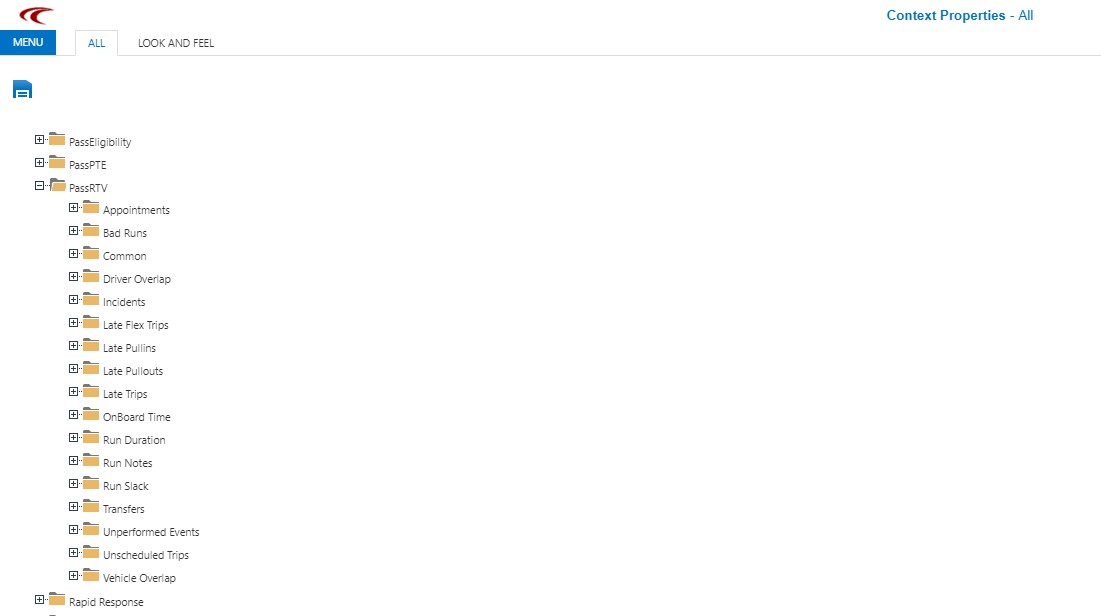
-
Expand the PassRTV folder and the Common
folder.
properties appear. Either an ellipsis button or a field appears beside each property name.
-
For each property with a field, type a property value.
If a field appears for a property, the property value applies to all users, and you cannot set values for particular users and groups.
-
For each property with an ellipsis (...) button, click the ellipsis button.
The Edit Dependencies dialog box appears.
-
Do one or more of the following:
To... Do this... Specify a property value for all users Specify the value in the Default field and click Save. Specify a property value for a particular user or group Click the Add Dependency button: 
Empty fields appear in the Level 1 area.
In the first empty field, specify the property value.
In the Activity/Username field, type the user or group name to whom the property value applies.
Click Save.
Delete a property for a specific user or user group Click the Add Dependency button: The screen shows property values for specific users and groups.
For each property value that you want to delete, click the Delete Dependency button:
Click Save.
-
Click the Save button:
