
Running PASS Standard Reports
PASS standard reports provide operational statistics for your transit site using data from Trapeze PASS.
Before you begin
To run each of the reports listed in this catalog, you must be granted permission to access them in the Trapeze6 Client shell. If you cannot access a report, contact your system administrator. Security permissions for each report are found under .
About this task
Procedure
-
Click Reports and click a report type (for example,
Data Diagnostic).
Trapeze Reports appears.
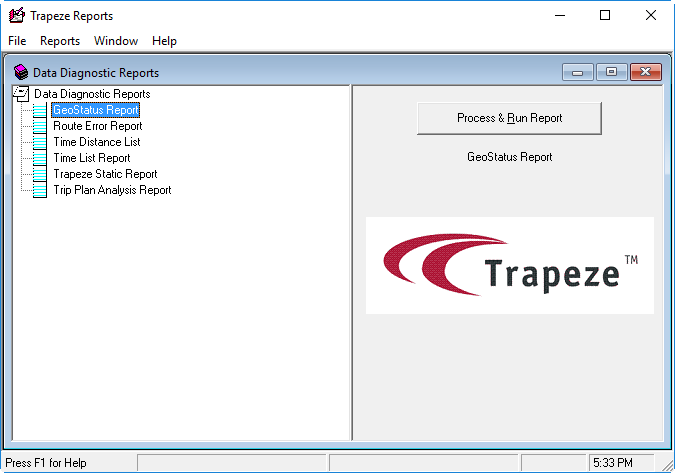
- Click the name of the report to be run.
-
Click Process & Run Report.
A dialog box shows the report parameters.
-
Specify the report parameters and click OK.
The report appears in a report viewer window.
- Optional:
Print the report:
-
Click the Print button:

-
Click the Print button:
- Optional:
Export the report:
-
Click the Export button:

- In the Export dialog box, specify a Format (for example, Acrobat (PDF)), comma-separated values (CSV), Excel (XLS), or Crystal Reports (RPT)) and Destination for the exported report (for example, disk file or application) and click OK.
- In the Export Options dialog box, specify the pages to export and click OK.
- If the Choose Export File dialog box appears, specify the name and location for the file and click Save.
-
Click the Export button: