Scheduling Group Bookings
Use the Schedule Booking Wizard for group bookings if you need to monitor them closely or if you want to schedule them to common runs.
Before you begin
About this task
Procedure
- In the Group field, type the group name.
-
Click Display.
All bookings for the group within the specified dates are shown.
-
Select the booking to schedule.
To select multiple bookings for the group, hold CTRL while clicking each booking.
-
Click the Schedule button:

Schedule Booking Wizard shows the selected bookings.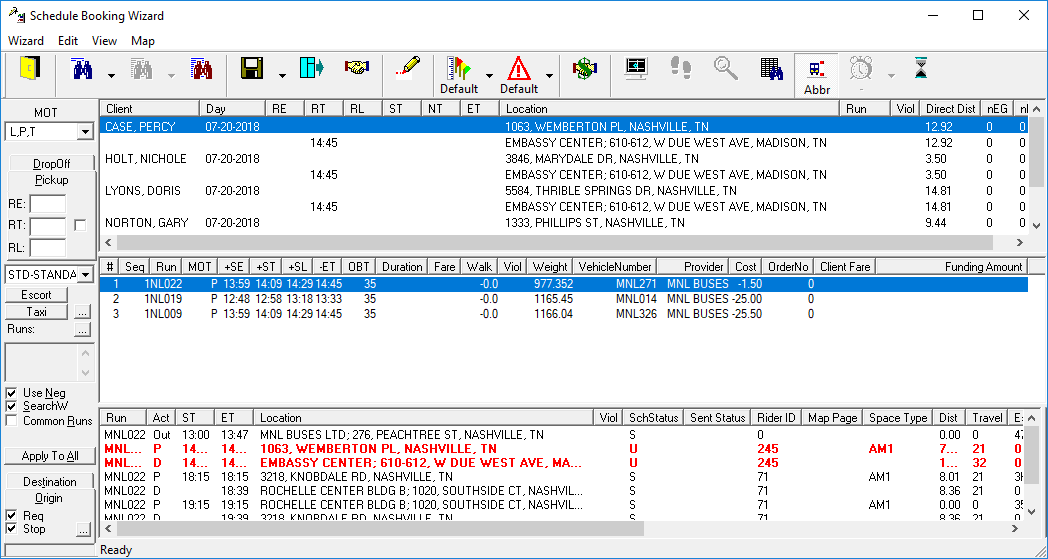
-
Schedule the bookings one at a time.
Note the following conditions about group bookings:
- If the booking is marked as an Exclusive Group, the system attempts to find runs with no passengers scheduled to it.
- If the group booking is not an Exclusive Group, the system finds the best solutions for each booking without regard to the other bookings within the group (that is, bookings may be scheduled to different runs).
- If you want to schedule all members of the group to the same run (where there may be
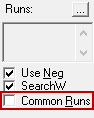
other passengers outside of the group), use the Common Runs
option before searching for solutions.